MUSIC & TV
Sharing your sounds, fixing mangled metadata and transforming your TV experience couldn’t be easier
WRITTEN BY CARRIE MARSHALL
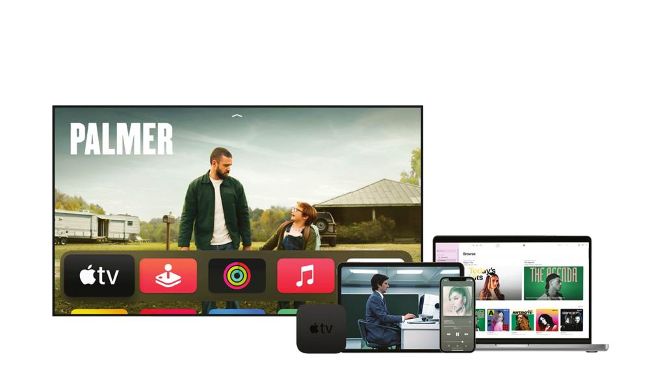
Image rights: Apple.
MASTERCLASS
B ackin 2001 — yes folks, 21 years ago — Apple urged us to Think Different about music. That year’s iMac included a brand new bit of hardware, a CD drive that could also burn CDs whose contents were picked by you from your music library. That Mac came with a new slogan — Rip. Mix. Burn — and it was soon followed by something Apple called the iPod.
That turned out to be quite a big deal.
To begin with, Apple thought we’d copy CDs to our hard disks and to our iPods. But, as internet connections got faster and storage space got cheaper, Apple moved to selling downloads with the iTunes Music Store in 2003, adding TV shows and movies in 2006. It began phasing out optical drives in Macs with the MacBook Air in 2008, and in 2015 it launched the Apple Music streaming service; Apple TV+ followed in 2019. Apple still sells digital downloads, but it would much rather you took out a streaming subscription.
As much as we love streaming, we have existing libraries of music and video from the days when iMacs could still rip, mix, and burn. In this feature, we’ll discover how your existing libraries can live with Apple’s newer services in perfect harmony.
We’ll also discover what pitfalls to watch out for, how to get the most music and movie bang for your subscription buck, and what to do when you encounter problems with media in your library.
RIP. MIX. BURN.
How to import and manage your own Music collection
AS LOVELY AS it is to have an extensive collection of CDs, you can’t beat the convenience of digital music. The first iPod promised 1,000 songs in your pocket and today’s iPod touch or iPhone has room for more music than most of us buy in a lifetime, with Macs offering even more. So how do you get your CDs into the Apple Music app, or iTunes on older Macs, so you can play them, share them, and even burn your own CDs from them?
The good news is it’s really simple; if you have a CD/DVD drive in your Mac just put the CD in the drive and your Music app will look it up online and find the title, track details, and artwork. If your Mac doesn’t have a CD/DVD drive you can attach one via USB. Apple still makes the USB SuperDrive, a CD/DVD player and burner, and there are plenty of more affordable third–party options too.
Before you start to import, it’s worth taking a trip into the Music app’s settings (in Music > Preferences). If you have an internal CD/DVD drive or have connected an external one you should see an option in the General tab for “When a CD is inserted”. You can choose between Show CD, which displays the disc in Music but doesn’t play it; Play CD, which does what you’d expect; Import CD, which automatically copies the whole CD to your Library; and Import CD and Eject.
This last option is best if you’re going to be importing multiple discs.
In Preferences, click on Files and ensure “Keep Music Media folder organized” and “Copy files To Music Media folder” are both checkmarked. This means your music always goes to the same place on your Mac, or on an external drive if you’re short of storage. If you have multiple users on your Mac you should do this on their accounts too, ensuring that the location of their media folder is under their own user account — / Macintosh HD/Users/[their username]/ Music. This ensures that everybody’s music is stored separately. You can all share the same storage location if you prefer; once you’ve got your Library on one account, open another and in Music use File > Import.
Next, click Import Settings. This is where you decide what file format and file quality your music will be when it’s copied to your library. The default is Apple’s AAC format, which is designed for mobile music; it’s not full quality but it’s hard to tell the difference on ordinary earbuds and the file sizes are fairly small.
HOW TO Get the best from the Music app
1 See all your stuff
Y our existing library should now appear in the Artists, Albums, Songs, and Music Videos sections. As you can see, the interface is identical to Apple Music, and if the artist has included lyrics in their MP3s, you can sing along.