Problems Solved
Our experts solve all your tech problems
PROBLEM OF THE FORTNIGHT
Can I sync my Google calender with Outlook?
Q I use Microsoft 365 and have installed Outlook to manage my email and calendar. I’ve searched online but can’t for the life of me work out how to set the Outlook calendar on my computer to sync automatically with my web-based Google Calendar. The only solution I’ve found is to save my Outlook calendar manually and upload it to Google Calender, but obviously this means it won’t update automatically when I add new appointments.
I’ve tried clicking Share Calendar in Outlook but nothing happens, and when I select Publish Online, it starts talking about a ‘WebDAV Server’. I don’t know what this is or how to set it up. Is there a simple solution or any third-party software you can recommend?
Andy Brice
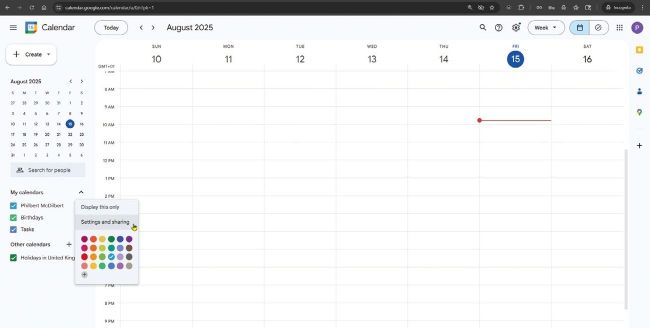
Open ‘Settings and sharing’ in Googe Calendar’s Options menu, then ‘Integrate calendar’
A Basic functions like this really should be a lot simpler for everyday users to set up. However, in the four decades Microsoft has been developing its 365 apps, it has been trying to cater to the needs of both business and domestic users, so they’re a bit of a mess.
First, forget about using Share Calender, Publish Online and WebDAV Server – they’re all features for sharing businesses calenders and need to be set up by an expert.
If you want to sync the Outlook calendar stored on your PC with a cloud-based calendar, Microsoft would rather you use its own service through Outlook.com. So, if you set up Outlook using an Outlook.com email address, for example, the calendar would sync using that service.
However, you want to use Google Calender – presumably because you’re using Outlook to sync a Gmail account. This is possible, but how you go about it is far from obvious.
First, log into your Google Calendar at https://calendar.google.com. Then, in the left-hand pane, click to expand the My Calendars section. Ensure the calendar you want to share is ticked, then hover your cursor over its name to reveal the Options menu icon (three dots). Click this, then choose ‘Settings and sharing’ (see screenshot above).
Next, on the left, click ‘Integrate calendar’ and then, on the right, look for the section headed ‘Secret address in iCal format’ ( 1 in our screenshot below left). The full address is obscured for privacy, though it’s just a long string of characters. If you want to see it, click the eye icon 2 . However, all you really need to do is copy it to the Windows Clipboard by clicking the copy icon 3 .
Now open Outlook. Click on the left to select the Calendar tab and then, near the top-right corner, click the Add button before choosing From Internet. Next, in the New Internet Calendar Subscription box that appears, paste the secret address you just copied from your Google Calendar by clicking in the box and pressing Ctrl+V. Click OK and Outlook will add your Google Calender to its My Calendars list.
You can use the tick box to display or hide it when you want. Syncing is automatic and will happen whenever you launch Outlook and while it’s running.