CLOUDRE ADY
Install Chrome OS on any PC hardware
Enjoy a simple-looking operating system with a lot of power, which can be added using a Linux container. Matt Holder is your guide.

OUR EXPERT
Matt Holder has been a fan of the open source methodology for over two decades and uses Linux and other tools where possible. In his spare time Matt enjoys listening to music and reading.
QUICK TIP
Supported devices have been heavily tested by Neverware and can be seen at the link below. Other devices are likely to work as well, but won’t have been tested and may have some hardware that doesn’t work as expected. https://guide. neverware. com/ supporteddevices.
C hrome OS is based on the open source Chromium OS and over the years there have been various attempts to make Chrome OS builds available to any users who wish to install it on their personal devices. Around five years ago this author was attempting to use builds by ‘ArnoldTheBat’ on old eeePCs. While FydeOS is another Chromium OS build, which is targeted at the Chinese market.
This leads us nicely onto Neverware, which has been producing its own OS, called CloudReady, for around five years now. Neverware has a series of supported devices, which the OS has been tested on. Lots of other devices are compatible with the download as well, but haven’t been tested.
Neverware’s CloudReady has proven to be popular in the education environment because it can be installed on older (64-bit only) equipment and perform smoothly than when running better-known operating systems. Other benefits include being able to enrol CloudReady devices into the Google Workspace Admin console by purchasing a paid-for upgrade. With these enterprisespecific features, it’s no surprise that Google acquired Neverware at the end of 2020.
With that background out of the way, it’s time for us to discuss the Home edition, which can be downloaded and installed at no cost. At its heart Chrome OS is a heavily customised Linux distribution, with a very lightweight shell. In this article, we’ll download and install the Home edition of CloudReady and then walk through the initial setup process, first login and familiarisation process.
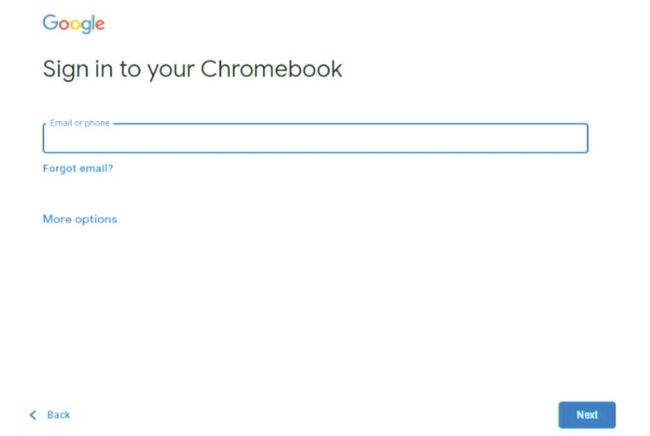
The standard login screen can be seen in this screenshot. A Google account is required to log into CloudReady.
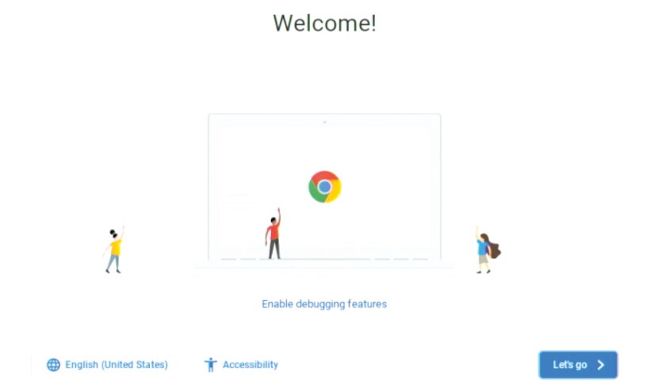
This is CloudReady’s welcome screen. This wizard simplifies initial connection to Wi-Fi, updates and displays T&Cs.
Installing the OS
Neverware’s CloudReady can be installed as a virtual machine or on bare metal. If running as a VM, only some of VMWare’s products are supported. Running as a VM is outside the scope of this article, but further details can be found at https://bit.ly/lxf283cloudvm. Unfortunately Oracle’s Virtualbox isn’t supported due to incompatibilities with the graphics stack.
To install the OS on bare metal a USB stick needs to be prepared. This is a simple process and can be carried out using either the USB Maker tool, if running Windows or by following the steps below on Linux. By using the following link select the relevant option for your platform (Linux instructions will be discussed shortly): www. neverware.com/freedownload#home-edition-install.