COVER FEATURE
WINDOWS 10
Unwilling or unable to upgrade to Windows 11 when Microsoft ends support for Windows 10? Robert Irvine explains how to keep using your PC safely after 14 October
When Microsoft launched Windows 11 in October 2021, it assumed that within four years nearly every PC user would be running the new operating system. It therefore stuck to its original end-of-support date for Windows 10 – 14 October 2025.
Now that day is almost upon us and it’s clear Microsoft’s prediction was overoptimistic. The latest figures show that, while Windows 11 now has more users than Windows 10, with a 53 per cent global market share, 43 per cent of us still run the older operating system (www. snipca.com/56046).
WHAT YOU CAN DO
• Get free security updates from Microsoft for one year
• Extend Windows 10 support for your PC until 2030
• Stop Microsoft automatically installing Windows 11 on your PC
• Run your Windows 10 PC in a virtual machine in Windows 11
• Dual-boot Windows 10 and a free Linux distro
• Upgrade an incompatible Windows 10 PC to Windows 11
That equates to around 600 million users, who all face the same dilemma of what to do when Windows 10 stops receiving security updates. One Californian man has even filed a lawsuit against Microsoft, claiming the company is “forcing its customers to purchase new [Windows 11] devices” (www.snipca.com/56047).
Thankfully, there are nine options for Windows 10 users who don’t want to upgrade to Windows 11, or can’t because their PC doesn’t meet the minimum system requirements. In this feature we explain them all, in order of convenience.
Of course, the easiest option is to do nothing when support ends, and keep using Windows 10 like you always have done. But being complacent will expose your PC to serious security risks, so we strongly advise against it – especially because some workarounds are surprisingly simple.
OPTION 1
BACK UP DATA TO ONEDRIVE
In June, Microsoft threw a lifeline to Windows 10 users by announcing a free way to receive Extended Security Updates (ESUs) once it ends support on 14 October. Rather than pay to keep your PC safe after the deadline (see page 52), simply turn on Windows Backup to be enrolled in the ESU scheme (www. snipca.com/55995).
This will sync important folders, settings and credentials (logins and passwords) to your OneDrive account and automatically upload any new or changed files. It’s the easiest, cheapest and safest option, but there are a couple of catches. That’s why we called it “cynical and clever” on Microsoft’s part, when we reported the story in Issue 714 (page 6).
First, enabling Windows Backup only entitles you to free security updates until 13 October 2026 (and not feature updates or tech support). Unless Microsoft extends the offer for a further year, you’ll then have to upgrade to Windows 11 anyway – or try one of the options recommended in this feature.
Second, OneDrive only gives you 5GB of free online storage. Once you hit that limit, Windows Backup will stop syncing your data and you may stop receiving security updates.
If you’ve owned your Windows 10 PC for several years, you’ll probably have files totalling a much larger amount than 5GB. So you’ll either need to remove unnecessary items from the folders you sync to OneDrive – to keep within the limit – or pay for extra cloud storage.
You can get 100GB by paying £1.99 a month or £19.99 a year for Microsoft 365 Basic. If that’s not enough, Microsoft 365 Personal (£8.49 a month or £84.99 a year) gives you 1TB of storage, while a Microsoft 365 Family plan (£10.49 per month of £104.99 a year) includes a whopping 6TB, though it’s limited to 1TB per person. See www.snipca.com/55994 for details of the various plans.
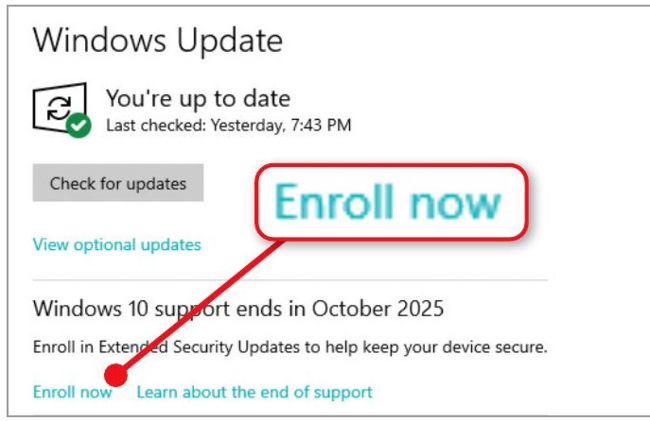
Click ‘Enroll now’ in Windows Update to launch the ESU wizard
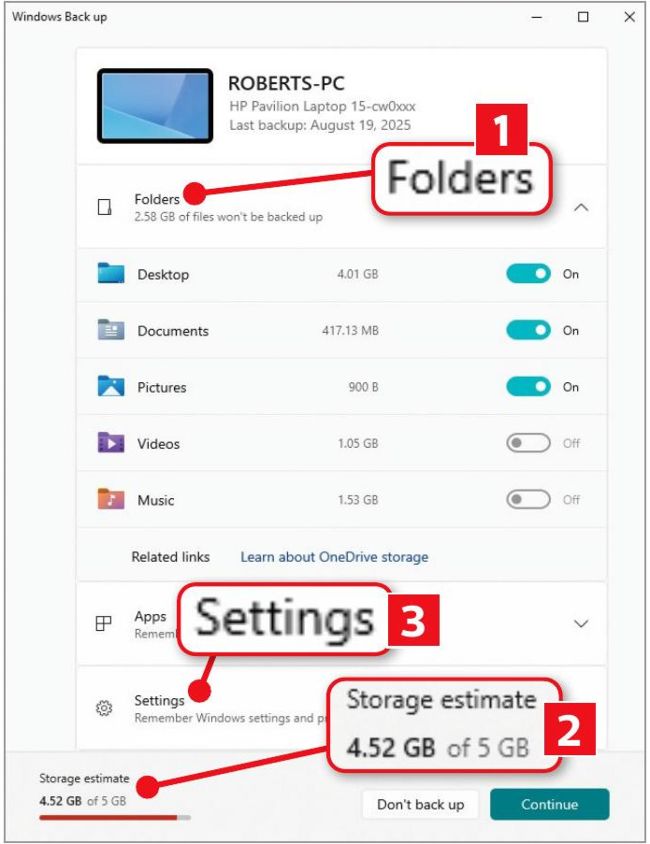
Choose which folders to back up to OneDrive or just sync your settings
If you’re already a Microsoft 365 subscriber, and you use Windows Backup to sync to OneDrive, you’ll continue to receive support for Windows 10 until October 2026 without paying extra. If you use another online-storage service such as Google Drive, you could split your backups between that and OneDrive to avoid exceeding the 5GB quota. Google Drive for Desktop (www.snipca.com/55208) can sync the same folders as OneDrive.