Answers
Got a burning question about open source or the kernel? Whatever your level, email it to lxf.answers@futurenet.com
Neil Bothwick dresses as Tux for birthdays and bar mitzvahs.
Backups and buttons
Q I need some software like Rollback Rx, to create and restore snapshots or restoration points of the system without the need for an external drive. I’ve tried Timeshift, Duplicity, Back in Time and Systemback. Software for both Debian/ Ubuntu and Manjaro are welcome.
I also have two questions about Gnome. How do I assign the Windows button to show the Application menu (9 dot menu): when I press Windows button, I’d like to open the screen showing all installed software instead of showing activities. I’d also like to have the Delete key move selected files to the bin, because while using Ubuntu this key is unresponsive. Terminal commands or Gnome extensions are welcome.
Al
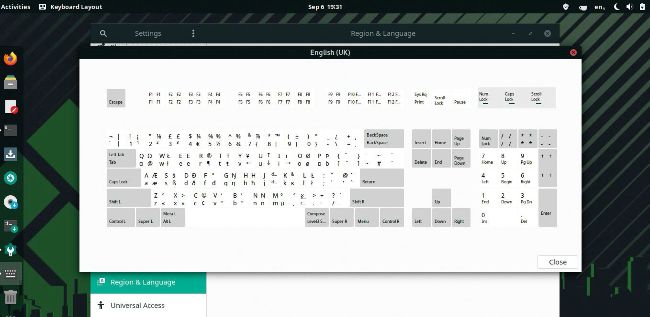
Gnome provides a useful illustration of the keyboard and the names it uses for all the keys.
The command line provides an efficient way to get things done, You can use the cursor up key to revisit the previous commands you entered, but the shell offers so much more.
Bash, along with other shells, maintains a history file of the last 500 or so commands you typed. The exact number is determined by the HISTFILESIZE and HISTSIZE environment variables. We generally set these to 1,000, but you don’t want to be hitting the up key hundreds of times to find the invocation of a command you used last week, so press Ctrl-R instead. This starts the history search. Start typing part of a command and it’ll show the most recent match. As you type more the match improves. If you want an earlier match, press Ctrl-R again. Once you’ve found the command, either press Enter to run it again, or the left or right cursor key to edit it first.
There are also some shell shortcuts that make use of the history file, usually starting with !. !-n runs the nth from last command again, !! is a shortcut for !-1 and runs the last command. !xyz runs the most recent command matching xyz, so it’s the same as Ctrl-R xyz Enter, but suitable for scripting too. There are plenty more options to make your shell life easier - check the Bash man page for full details.