Make amazing documents
Create top-quality documents with Pages, Numbers and Keynote using these invaluable techniques
Written by Tom Gorham, Kenny Hemphill, Christopher Phin and Rob Mead-Green
Apple’s productivity apps empower you to make documents that will impress people. But, like any big tool, the power that’s packed into Pages, Numbers and Keynote can take time to unlock, so we want to give you a running start with all three apps, boosting your skills with essential techniques you need in order to craft great documents that leave people asking how you did it.
In this feature, you’ll get to grips with structuring and styling your work in Pages, discover smart tricks for styles and formulae in Numbers, and learn our top tips for making a lasting impression with your presentations, including how to stay calm and in control with the help and correct settings of your iPhone, iPad and Apple Watch.
You’ll also learn how to collaborate with other people on documents at the same time, including good practice to follow before you share documents. We’ll also address your compatibility concerns so you know what to expect when a collaborator can’t access (or simply doesn’t use) Apple’s trio of apps. We’ve complemented these skills with productivity tips that’ll help you do more with the iCloud service and features exclusive to iCloud.com.
Put together perfect docs with Pages
Learn how to add style and structure, craft your own stationery and protect your work
Pages packs a punch when it comes to word processing. Here’s how to use its tools to powerful effect, controlling how text flows around images, making docs non-linear with hyperlinks, and personalising the docs you create.
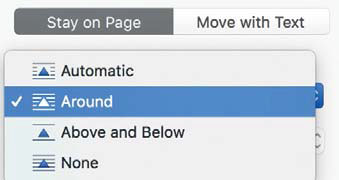
Use this pop-up in the Format inspector to choose how an object affects the flow of text.
1
Create and apply styles
Styles make it very easy to quickly change text attributes throughout a doc. Pages provides several default styles, or you can create your own: select some text, click the paintbrush icon in the toolbar to open the Format inspector and open its Style tab. Set a font, size, weight and other attributes, click the arrow next to the current style name at the top of the inspector, and click the + at the top right of the list. Name your style and press ®.
2
Wrap around images
With text and image on a page, select the image. In the Format inspector’s Arrange tab, click Stay on Page and set Text Wrap to Around. Use the Text Fit item to set whether your text wraps around the image’s contours or a rectangular boundary. Nearby, set the image’s border width.
3
Create columns
Select some text, then go to the Format inspector’s Layout tab and set the number of columns you want. Next, click the right-facing triangle to the left of the Columns heading to reveal a checkbox that ensures the column widths are evenly distributed, or use the table to specify different widths and the gutter (gap) between them.
4
Structure in sections
The app flows text from one page to the next, but if you delete a page it doesn’t just remove that one’s text, or bump it onto the next one; it deletes all your file’s content. Split text into sections to avoid this: first, choose View > Show Page Thumbnails, then place the insertion point on the page where you want a new section to start. Click Document in the toolbar to open the Document inspector. In its Section tab, click ‘Create a new section’ and choose ‘Starting with this page’ below.
Or, position the insertion point immediately before where you want a break and pick Insert > Section Break.
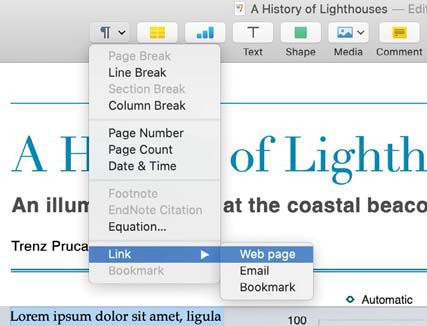
You can link text to a web page, an email address, or a bookmark within the same Pages document.
5
Add screenshots
You can add images from your Photos library to Pages using the latter’s Media Browser, or elsewhere on your Mac by using Insert > Choose (ß+ç+V]. You can take a shortcut if the image to include is a screenshot: press ç+ß+4 to display the crosshair, then hold ≈ and drag the crosshair over the area you want; a pic is copied to the Clipboard. In Pages, paste it with ç+v, then manipulate it like any other object.
6
Insert a hyperlink
Select the text to link and choose Format > Link > Webpage. In the panel that opens, set whether the link you enter is a web or email address, or a bookmark in your document.
7
Create a bookmark
Select the text you want to act as a bookmark and choose Insert > Bookmark. To link other text in your doc to a bookmark, select it and pick Insert > Link > Bookmark, then select the desired bookmark from the menu.
8
Images as bullets
Select the text of your first list item. In the Format inspector’s Style tab, pick Bullet from the Bullets & Lists pop-up. Click the triangle to the left and pick Image Bullets from the pop-up just below. In the Current Image item choose a predefined option, or click Custom Image to provide your own.