85 must-try iPad tricks
Are you getting the most from your amazing Apple tablet?
WRITTEN BY IAN OSBORNE
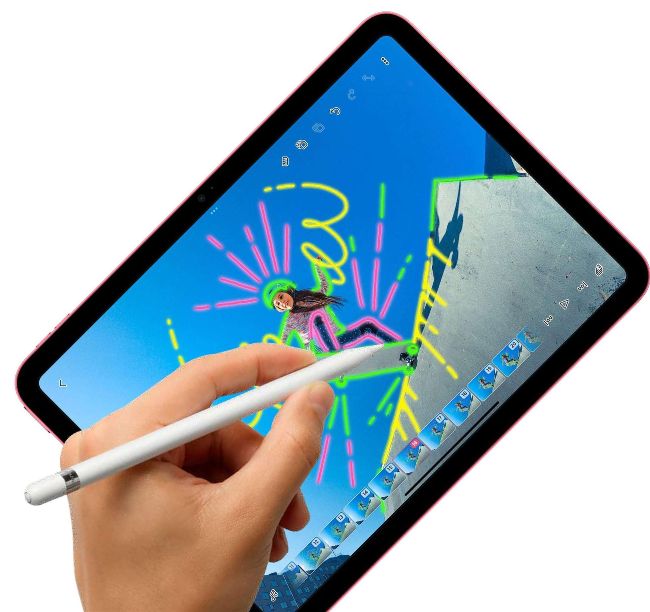
Image credits: Apple Inc.
BACK WHEN THE iPad was first released in 2010, it was criticized as being a decent device for consuming media, but not much use as a productivity machine. Now, almost a decade and a half later, things have changed dramatically.
There is so much you can do with your Apple tablet. In fact, it’s so versatile, some people decide to use it as an alternative to a desktop computer. And why not? Simply connect it to a keyboard case and you have a perfectly viable notebook.
If you need more storage, you can use a USB–C flash drive or portable drive. Pair an Apple Pencil, and you’ve an excellent digital drawing tool. And with Apple’s Pages, Numbers and Keynote productivity apps, you can work on the go too.
The iPad is perfect for the creative user. There’s plenty of powerful, capable art packages available, as well as in–depth photo editors that go above and beyond the already impressive editing tools offered by the Photos app. For musicians, there’s GarageBand and for video editors iMovie, with third–party apps for those who need a little more. And yes, the iPad is great for watching and streaming videos, reading ebooks, playing console–quality games and more.
In this feature, we take a look at what you can do with your trusty iPad, whether you’re working on the go, creating fine art, making a movie or simply enjoying your hobbies. With our help, you can get the most from your Apple iPad and the latest version of its operating system, iPadOS 17.
Multitasking for greater productivity
You can get a lot more done if you master these important iPad features
ON YOUR iPAD, there are several ways you can multitask. The most obvious is Split View, whereby you divide the screen, with one application on one side and another on the other. You can then drag content between them, quickly and easily. You can even open the same application twice if you choose.
To open a second app in Split View, drag up from the foot of the screen to open the Dock, and either drag a second application out of the Dock onto the left or right side of the screen, or tap the App Library, and drag an app to the left or right. You can drag the line dividing the two apps to resize them. You’ll need an iPad Pro, 5th gen iPad or later, iPad Air 2 or later, or iPad mini 4 or later.
Alternatively, Slide Over lets you open a second application in a smaller floating window, which is by default on the right side of the screen but can be moved to the left. You can have multiple apps open in Slide Over mode; to switch between them, simply drag the line at the foot of the Slide Over window upwards and hold it until the apps appear as thumbnails. Then just tap the one you want.

Watch a video or FaceTime while using another app.
To close a Split Screen or Slide Over app or switch between the two multitasking modes, tap the “…” icon at the top of an app and choose the option you want from the menu.
PICTURE–IN–PICTURE
Another useful multitasking tool is Picture– in–Picture mode. This lets you watch a video or FaceTime while doing something else. In the video application, tap the icon with the white rectangle pointing inwards to a black rectangle; the video pops out and is superimposed onto the iPad’s screen, where you can drag it or resize it. Alternatively, while watching a video or on FaceTime, swipe up from the bottom of the screen to display the Dock and choose another open app. The video appears in its corner. To close the floating video window, tap it to open the controls, then tap the two–rectangles icon again. Not every app is compatible with iPad multitasking, but key Apple apps are.
5 best iPad accessories
Magic Keyboard for iPad Pro
> From $299 >
www.apple.com
This handy keyboard turns your iPad into a powerful notebook. It connects to and draws its power from the iPad, so there’s no recharging or Bluetooth pairing needed, and it has a trackpad for more precise pointer positioning.
Twelve South HoverBar Duo
> $79.99 >
www.twelvesouth.com
HoverBar Duo is two stands in one. It has a clamp mount you can connect to a bar or bedstead, and a regular foot for placing on a desktop or kitchen countertop. Just the thing if you want to watch a video in bed, or easily follow a recipe.
Belkin Connect USB–C 4–in–1 Multiport Adapter
> $49.99 >
www.belkin.com
If your iPad has USB–C, plug this in and connect all sorts of peripherals to your iPad. It has a 4K HDMI port, so if you want to connect to a big screen, it’s ideal. It supports pass–through charging, so you can charge as you view.
Magic Keyboard Folio for iPad
> $249 >
www.apple.com
Another Apple keyboard, the Folio for iPad features a built–in trackpad, a 14–key function row, and a two– piece case design that includes a detachable keyboard and a protective back panel. It has an adjustable stand for flexible viewing angles too.
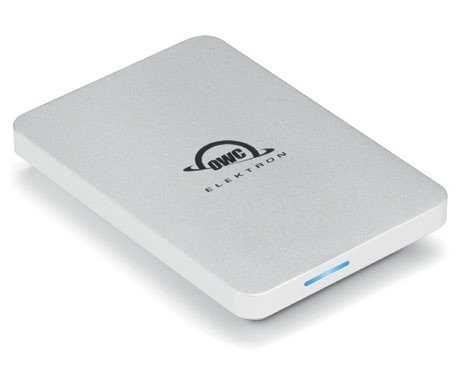
Image rights: Apple Inc, Twelve South LLC, Belkin, Other World Computing Inc.
OWC Envoy Pro Elektron
> From $129.99 >
www.owc.com
iPads with a USB–C port can connect to a portable drive, and this is one of the best. It’s available in capacities between 480GB to 2TB, and is crushproof, dustproof and IP67–rated waterproof, with speeds of up to 1,011MB/sec.