Get Started With Adobe Illustrator
YOU’LL NEED THIS
ADOBE ILLUSTRATOR
CC 2020
To view compatibility visit: https://helpx.adobe. com/illustrator/systemrequirements.html.
WE’VE RECENTLY FEATURED quite a few Photoshop tutorials, so we thought we’d switch it up a little and give its sister software a bit of love. Illustrator is an equally powerful tool in the Adobe ecosystem. At first glance, all the apps in the Adobe suite look pretty similar. Apart from the names and color schemes, you could easily be forgiven for getting them confused. This, though, is a good play from Adobe; with similar interfaces, it makes switching between the apps a bit easier. We will get on to Illustrator’s UI in more detail a little later.
Essentially, the main difference between Photoshop and Illustrator is that Photoshop uses pixels and is raster-based, whereas Illustrator uses vector-based rastering. In simpler terms, vector rastering creates points to make smoother lines. This makes it perfect for creating logos and graphic design work that can be scaled up without pixelation. If you need to create typography work, Illustrator is perfect for that very reason. Nobody wants pixelated text unless you’re going for a retro 8-bit look. If you are, then use Photoshop—you’ll get it whether you want it or not. Anyway, in this tutorial we’re taking a first look at Illustrator, explaining how to navigate around and get started with this excellent tool.
–SAM LEWIS
A
© ADOBE
1 CREATE A NEW DOCUMENT
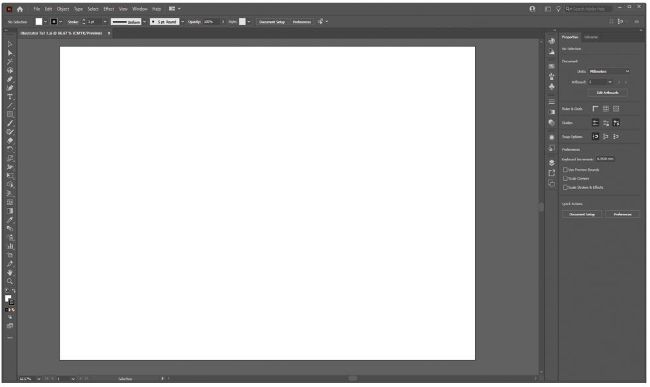
As we mentioned, Illustrator shares a similar interface with Photoshop, and if you’ve been following our Photoshop tutorials, this should hopefully be a familiar place for you now. The tools aren’t identical and certain things are named differently, but the format of the software is the same. When starting up the app, you are greeted by the opening screen, where you can see previous projects and have the option to open or create a new file. For today’s tutorial, we are just going to open up a blank A3-sized document. Click the “Create new” button. A window opens and along the top are options for various formats. Head to the “Print” tab and select “A3”—we have chosen a landscape orientation [Image A].