Affinity
AFFINITY
THE
COMPLETE GUIDE
TO THE FREE CREATIVE SUITE
EDIT PHOTOS, CREATE CLEAN VECTOR IMAGES AND PUT TOGETHER PROFESSIONAL MULTI-PAGE DOCUMENTS:
NIK RAWLINSON
INTRODUCES THE AMAZING POWERS OF THE NEW FREE AFFINITY APP
@PCPRO FACEBOOK.COM/PCPRO
For the past decade we’ve been recommending Affinity Photo as an affordable, buy-once alternative to Adobe Photoshop, with companion apps Affinity Publisher and Affinity Designer making persuasive rivals to InDesign and Illustrator. Last year, though, Serif – the original developer and publisher of Affinity apps – was bought out by online design giant Canva, raising concerns about Affinity’s future.
Happily, Canva hasn’t killed off Affinity. In fact, it’s just unveiled the best version of Affinity ever – a brand-new integrated app that brings together all the powerful features of its three predecessors, and adds in a whole lot more. What’s more, where the complete Affinity suite used to cost around £90, the new app is completely free for both personal and commercial use (aside from a few AI add-ons, which we’ll discuss later in this feature). You can download it right now, for Windows or macOS, from affinity.studio.
The all-in-one approach makes a lot of sense. Serif had already been heading in that direction with a feature called Studio Link, which let you use tools from Affinity Photo to edit images while working inside the Publisher app, but now the whole suite works together for a completely seamless workflow. It’s an impressive achievement that removes countless points of friction, and arguably makes Affinity a more productive and intuitive way to work with images and pages than Adobe Creative Cloud.
Inevitably, questions have arisen about whether the software will remain free, or whether the publisher will start to tighten the screws once the tools gain widespread popularity. But the suite’s new owner insists that’s not on the cards. “Canva is a rapidly growing company with over 28 million paying customers and $3.5 billion in annualised revenue,” said Canva co-founder Cameron Adams announcing the update. “That sustainable foundation enables us to keep investing in both our free Canva experience and the next generation of creative tools, including offering Affinity completely free.”
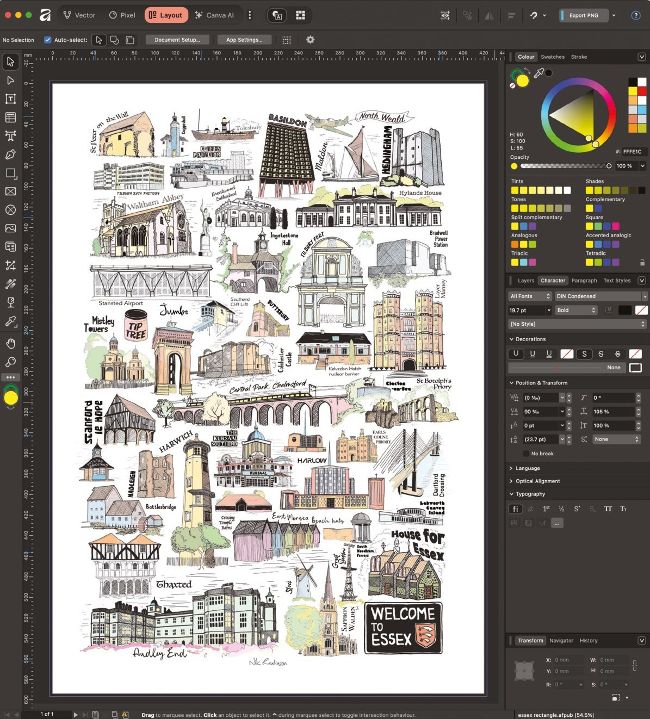
Editing a complex project is much easier when you can freely switch between vector, pixel and layout editing
You can also read our interview with the CEO of Affinity, Ash Hewson, in last month’s magazine (see issue 376, p12), who was similarly reassuring. “We’re 100% committed, and we’ve been really, really clear that this is an absolutely long-term commitment that Affinity is going to be free forever,” he said. “And we’ve also been very clear that does include all future core app updates.”
What’s certain is that if you want a free, fully featured app for editing images, creating new vector graphics or putting together print publications then Affinity is the obvious choice. On the pages that follow you’ll find guides to performing some simple tasks in the Pixel, Vector and Layout views – and below we’ll take a closer look at what Affinity can do for you, starting with the suite-wide features that will apply equally whichever module you’re using.
LOOK AND FEEL
If you’ve used the old Affinity apps, you won’t have a problem finding your way around the new software. Affinity’s interface is bolder, with chunky monochrome icons on a dark background, but largely familiar. It’s subjective, but we think the new design is an improvement – even after ten years of use, we still used to find ourselves hunting for the gradient fill icon in Affinity Photo, but no longer.
If you don’t get on with the default interface it can be tweaked, with individual sliders for the artboard grey level, UI illumination, text contrast and more. You can enlarge the text if you find yourself squinting, and you can even set how long a tooltip waits before it pops up.
There’s plenty of help on offer if you get stuck: hover over a tool and you’ll see a pop-up showing its name, its keyboard shortcut (if there is one) and a description of what it does. Click this to open a more extensive window explaining how to use the feature in greater depth.
If you’re still stumped, you can ask Ritson, a new AI assistant that can answer your questions and make intelligent use of context. If you’re not a fan of AI, that’s no problem – Ritson only pops up when you actively invoke it, so it won’t ever butt in with unwanted comments about your work. In fact, in its current state it can’t “see” what you’re working on, and is limited to answering questions about using the software, so you don’t need to worry about privacy.