QGIS
Create, edit and use custom mapping data
If you like Google Maps you’re going to love QGIS. Mike Bedford shows you how to get started and introduces some of its functionality.

Mike Bedford is a big fan of QGIS. However, he admits to still loving good oldfashioned paper OS maps while he’s walking on the hills.
OUR EXPERT
Credit: https://qgis.org
QUICK TIP
When you work on a project, you’ll end up with several files including, for example, files associated with the layers. For this reason, it’s good practice to use a new folder for each project and keep all of the project files together.
Back in 1962, archaeologists in the Czech Republic discovered a mammoth’s tusk that has been engraved with a geometrical design. The pattern was subsequently identified as representing the hills, rivers, valleys and routes of the surrounding area. It was dated around 250,000 BC, making it probably the earliest map ever discovered.
In the library of Hereford Cathedral is the Mappa Mundi. Created around 1300, it’s the largest surviving medieval map of the world. The UK’s Ordnance Survey was set up in 1791 to help address the perceived risk arising from the Jacobite rising, and of invasion by France, and it went on to become one of the world’s foremost national mapping agencies. And 1999 saw California-based ESRI release its ArcGIS graphical information system, which would become the world’s most used GIS (geographic information system).
These few notable dates in the history of cartography illustrate 27,000 years of change and it’s clear that the rate of change has accelerated significantly in recent years. This isn’t surprising since digital technology has had the same effect on so many other areas, but it’s been suggested that a GIS is so different to its predecessors that it’s a totally new entity. Professionals point to support of multiple layers and an ability to carry out analyses of geographically based data as just some of the things you can do with a GIS but not with an ordinary map. And if you’re wondering where Google Maps fits in, while we’re not going to get embroiled in the debate over whether or not it’s a GIS, we would agree with the sentiment that a fully blown GIS is like Google Maps on steroids.
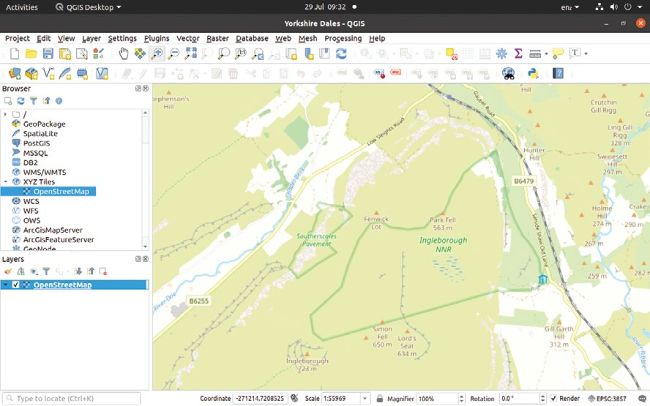
Adding OpenStreetMap data as a base map couldn’t be much simpler.
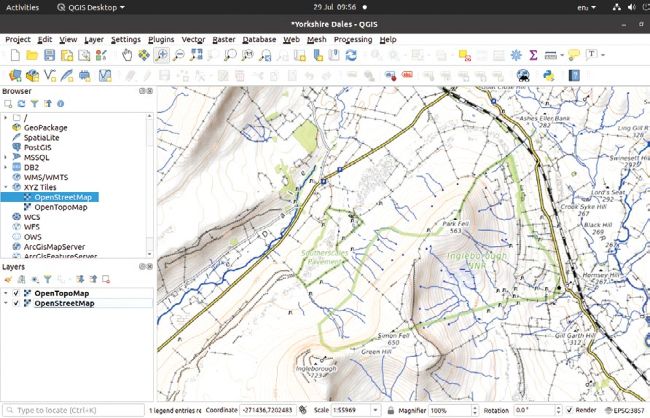
From street maps through topographic maps to aerial imagery, any number of options are available as base maps.
ESRI’s well-respected ArcGIS isn’t cheap at £1,192 per year, including VAT, for professional use. This reduces to £139 for non-commercial use, but that’s still a lot unless you have a fairly serious application. Our subject here, therefore, is the free open source QGIS which is widely used professionally and is considered to be on par with many professional GIS offerings.
We’re going to provide a hands-on introduction to using QGIS but we’re certainly not going to be looking at all its features, in fact we won’t come close. After all, if you can think of something you believe you ought to be able to do with mapping data, it’s a fair bet that QGIS can do it, either natively or via one of its many plug-ins. However, we trust that our tentative first steps will be enough to excite you about the possibilities of QGIS and start you off on your own voyage of discovery.
Orientate yourself
If your main experience with digital mapping has involved Google Maps, the first thing you’ll notice when you start up QGIS for the first time is that you don’t see a map at all. Instead, unless you open a project that someone else has produced, you’ll need to create a new project but, even having done that, you’ll be faced with a blank canvas to which you’ll need to add data as layers.