Google Docs and Sheets
Google Docs and Sheets HIDDEN FEATURES
There’s more to Google’s free online office applications than meets the eye: Nik Rawlinson explores the advanced capabilities you might have missed
Google Docs and Sheets are two of the world’s most widely used productivity applications. There are two very good reasons for that: they’re free, and they’re easy to use.
That doesn’t mean they’re light on features, however. Tucked away in their menus (and in Sheets’ library of formulas) are some powerful tools that go far beyond what you’re likely to come across in casual use. On these pages we’ll reveal the best hidden features in each application: put them to use, and you’ll be working faster, with fewer mistakes and better results.
DOCS
Type less with automatic text replacements
You may have noticed that when you type three dots in Google Docs, they get turned into a single ellipsis symbol. Similarly, typing “(c)” or “TM” gives you a copyright symbol or a trademark tag. You can create your own substitutions that work in the same way, to quickly and accurately enter long or tricky words and phrases.
As an example, let’s say you want to create a shortcut that inserts a standard legal disclaimer into your documents. To do so, go to Tools | Preferences in any Google Doc and switch to the “Substitutions” tab. You’ll see a list of default substitutions; you can edit these, turn them on and off by toggling each one’s tick box or remove them completely by clicking the “x” next to their name.
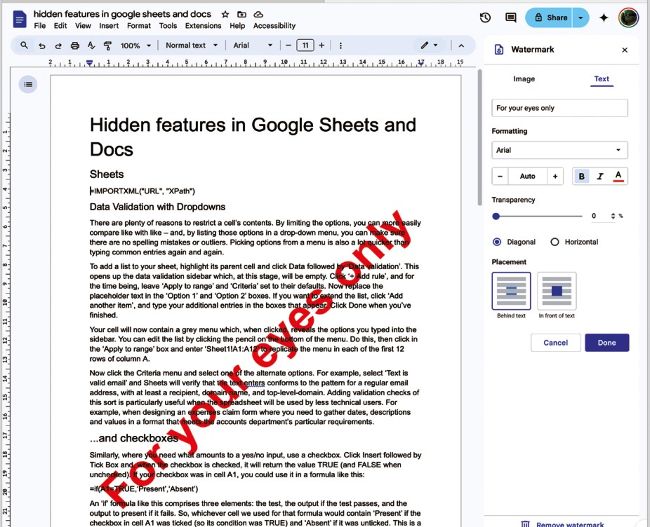
Watermarks can sit above or below the text on the page
You can create your own substitutions to quickly enter long words and phrases
To create a new substitution, type your desired shortcut and replacement text into the two empty boxes at the top of the list. For example, we might type “##legal” under “Replace”, and enter the desired legal language at the top of the “With” column. Although the text-entry field is small, you can paste hundreds of words in here if you wish. There’s no need to use the two hashes, but we’ve done so to ensure we don’t accidentally trigger the replacement when using the word “legal” in the normal way.
Once you click OK, your substitution will be saved, and will then be available across all Docs documents you subsequently open – not just the one you defined it in.
DOCS
Watermark your documents
If you’re sending out a draft document for approval, you might want to add a watermark before printing or sharing it, to clearly flag its status as confidential or unfinished.