GENIUS TIPS
EDITED BY HOWARD OAKLEY
S
EXPERT ADVICE
Our resident genius solves your Mac and iOS problems
Contact us
Email your queries and your questions to genius@macformat.com
RIP PostScript
Post Script, the page description P language that made desktop publishing and the Mac so popular in the 1980s, is now officially unsupported in macOS Sonoma. You can still print to PostScript printers and send PostScript files direct to them, but Preview can no longer image or convert them. You’ll find that the command tool pstopdf has vanished, and the same goes for Encapsulated PostScript, EPS.
While the language is ideal for printing and pre-press, it’s a gift to those who develop malicious software. Over the last year, severe vulnerabilities have been found in its interpreters, sufficient to make them a liability we could all do without.
This is the more poignant as John Warnock, co-founder of Adobe and architect of PostScript, EPS and PDF, died last August. Rest in peace, Dr Warnock and PostScript.
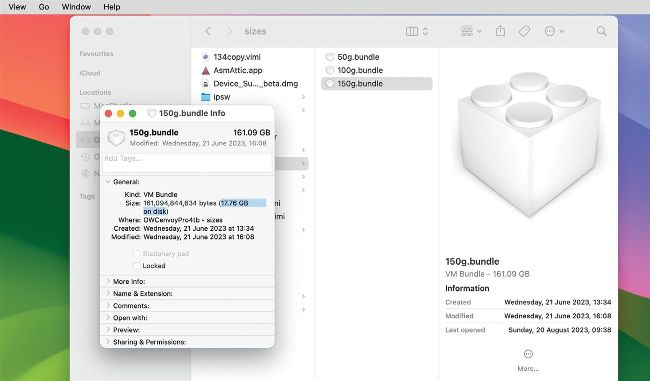
This virtual machine has a virtual disk size of 150GB, but as the Finder’s Get Info shows, it takes up less that 18GB.
Virtual machines not as big as they seem
QCan I increase the size of the disk in the macOS Monterey virtual machine on my M2 MacBook Pro? by TRISTAN HUGHES
AAs of macOS Sonoma, there’s no known way to change the size of the disk image in a virtual machine (VM) running macOS on Apple silicon Macs, although that’s a feature we hope for in the future. Fortunately, there’s a trick to VMs that makes it better to create them big in the first place, as they don’t take up disk space they aren’t using. This also applies to read-write disk images in general, and has worked since macOS Monterey.
When you create and install your VM, give it as much space as you would wish for, say 100GB. Once personalised and configured, shut it down, select the VM bundle in the Finder, and use the Get Info command on it. You’ll see that the size it takes on disk is less than 18GB, even though it has 100GB capacity. This is because macOS saves it in its special sparse file format, omitting all empty space in the VM and only using disk space for its data. Instead of paring down the size of your VMs or disk images, you should now set them to use the most space they’re likely to need, and leave macOS to manage their size more efficiently by automatically saving them in sparse file format.