WE COMPARE TONS OF STUFF SO YOU DON’T HAVE TO!
Roundup
IntelliJ IDEA KDevelop Geany Apache NetBeans Visual Studio Code

Reed
first program printed his name down the screen on an Apple II when he was six. His skills have improved since then. Slightly.
HOW WE TESTED…
To make sure that we knew what each integrated development environment (IDE) was really like to use, we alternated between them. We made sure that starting a new project and building a working program actually worked – and in some cases, it didn’t. In the same way, we made sure that installing the language support resulted in a working system, and made note of any tweaks we had to make to get that working.
It’s important to actually type in some code to get a handle on what the code editor, one of the most important parts of an IDE, is like in use. A good IDE can do quite a lot of handholding when you are attempting to learn something new, and we tried a few unfamiliar topics while moving between the different IDEs to see if we were getting the right hints and suggestions while working. Some of the editors pushed us forwards and caught errors, and some of them didn’t do much to help.

CREDIT: Moment RF/Yuichiro Chino/Getty Images
The best IDEs
For beginners or experts, integrated development environments are the main tool used to develop software. Michael Reed compares five options.
Whether you’re a beginner or a seasoned, expert developer, an IDE is your home from home while you’re creating software projects. At first glance, IDEs may look like text editors, but they combine everything you’d expect from a programmer’s editor with more extensive features for project management.
Some IDEs are designed with a particular language and programming environment in mind, but the line-up we’re considering here ranges from being able to handle at least a few different languages all the way to being so expandable that they can take on pretty much anything you throw at them.
In the hands of an experienced programmer, an IDE can speed up code creation and spot errors, while code suggestions and completion can make learning something new even easier.
There was a time when getting the professional-level tools to make software was a barrier in itself. These days, there’s a lot of free options, and that’s what we’ve concentrated on with the line-up that we’re comparing. In some cases, there may be premium features and add-ons available, but make no mistake, the sky’s the limit in terms of what you could create with these five applications.
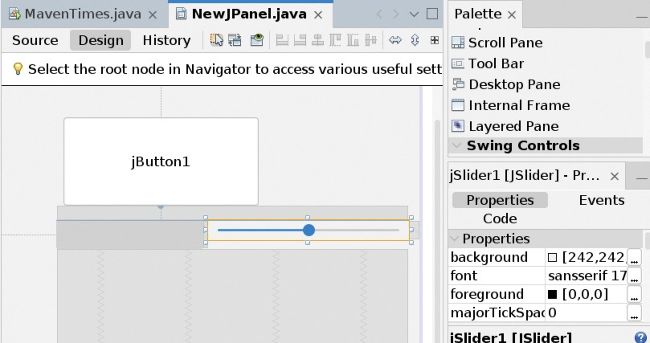
NetBeans has excellent support for Java development, and includes a Swing user interface designer. It usually sets itself up successfully when installing plugins.
Language support
Language and framework support is the first thing you have to consider.
Visual Studio Code
has amazingly broad language support. It can even detect that you’re editing a source code type that would benefit from more support and give you advice on what plugins to install. Every major language and framework is supported, alongside some more niche situations, such as 6502 assembly language support.
NetBeans
is primarily a Java IDE, but it has support for other languages, internally or via plugins. C/C++ support looks like it has been abandoned, and we couldn’t get it to work.
NetBeans
is excellent for Java, HTML and JavaScript (including Node.js) development and has some support for Python and a few others.