GENIUS TIPS
EDITED BY HOWARD OAKLEY
EXPERT ADVICE
Our resident genius solves your Mac and iOS problems
Contact us
Email your queries and your questions to genius@macformat.com
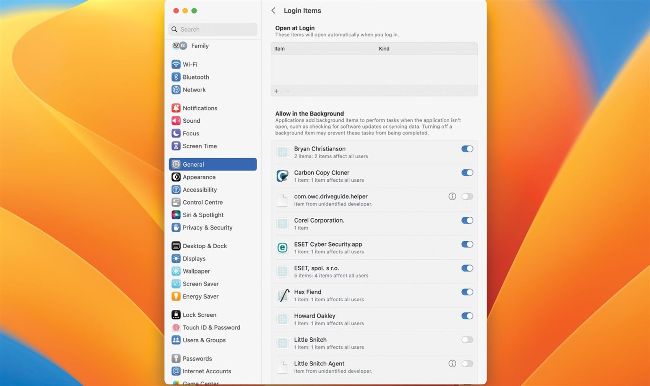
Control individual Login and Background helper tools used by apps in Ventura’s new section in System Settings.
Which app is causing problems?
I recently installed several new apps, and since then my Mac has been acting up. How can I tell which of the installed apps is causing the problem, or could it be Ventura?
by TOM MORGAN
Appsmay install login and background items that can cause problems even when the app isn’t running. You may get clues from looking in the CPU pane in Activity Monitor, where they might be listed. If you suspect any third-party app is responsible, test this by starting up in Safe mode to disable them and see if problems persist. If they vanish, then it’s most likely one of the new apps to blame, and you should visit System Settings > General > Login Items to see what happens when you disable their login and background items there. You can also temporarily disable all Login Items by pressing and holding the Shift key when you click on the Log In button after restarting your Mac. Release the Shift key when the Dock appears.