LXF ADVENTURE
Text adventures: now in full colour!
Nate Drake embraces ancient graphics and dinky sound effects in the final part of our text adventure coding series.
Credit: https://github.com/azuregate
OUR EXPERT
Nate Drake wants to dedicate this series to his dad, who once told him that no one was ever going to pay him to sit around and play video games.
QUICK TIP
You can find a full list of ANSI escape codes for both the foreground and background colours at https://t.ly/fvUmx. Take some time to experiment with different effects but remember that some codes affect other aspects of the terminal, such as the cursor position.
What dungeon would be complete without a splash of paint? While text adventures traditionally are just so, that doesn’t mean you need to make your player suffer through endless screens of black and white. Plenty of simple text games incorporate elements of colour, sound effects and even simple graphics, which are the focus of the final part of this series of tutorials. If you’ve been following the previous articles in this series, by now your text adventure should be starting to take shape. Your character can move freely between rooms, interacting with items. Some are helpful and some hinder them. Through introducing HP (hit points), players now have a vested interest in keeping their character alive.
The combat mechanic, while basic, also enables them to take turns hitting whatever creatures you spawn, then (hopefully) rifle their cold, dead corpses for loot.
If you’re a particularly gifted graphic designer, you could spend weeks crafting cunning polygonal images and create your fully graphical game from scratch. Even if you’re less artistically inclined, though, there’s no reason why your text adventure can’t be a little easier on the eye.
Since Python games can be run from the terminal, you can harness its potential to show different text fonts and colours.
The easiest way to do this is through the colorama module, which supports various text effects. If you don’t already have this installed, open your terminal and run:
$ sudo apt install python3-colorama
You can now get started by adding the following at the start of your Python script:
from colorama import Fore, Style
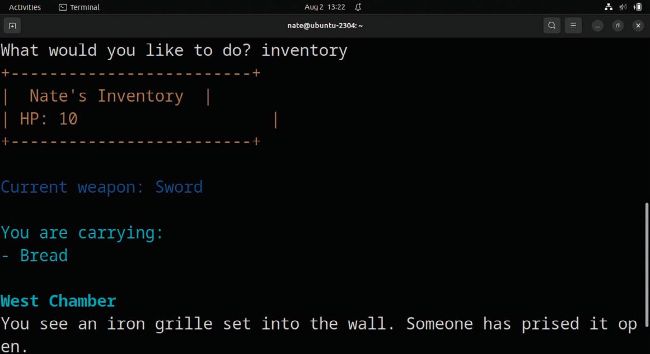
You can use the coloroma module to change the text colour and style. Here the room name is shown in a more striking font.
Next, let’s try to update the listinventory procedure to show separate values, such as the player name, using different colours: