Get chart success with Numbers
Create spreadsheets, charts, tables and more
Numbers is a very powerful app, but if you’re not used to spreadsheet software, it takes a little getting used to. These tips will help.
1 Explore the templates
The easiest way to get a grip on the Numbers app is to look at the templates it provides. See how the individual cells interact, how they supply the information used in charts and graphs, and how differing elements in a Numbers document interact. And if there’s a template that’s close to what you need, use that as your starting point, replacing the sample information in the template with your own figures.
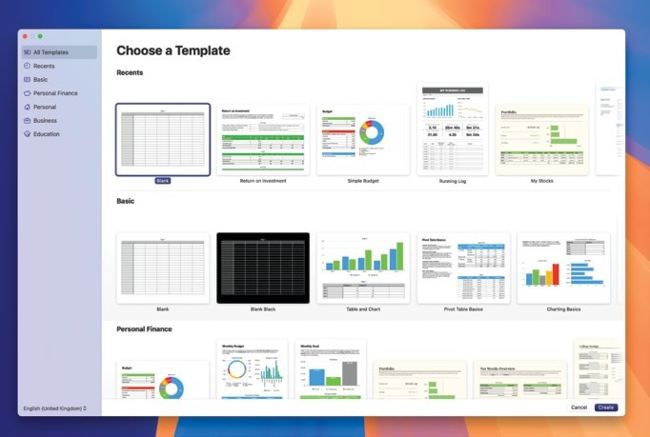
When acquainting yourself with the Numbers app, it pays to explore the templates.
2 Editing table
You can resize a Numbers table by clicking and dragging the icon in the bottom-right corner. You can also set the number of rows and columns by dragging the two-line icons in the bottom-left or top-right corners.
3 Add/remove columns
In a table, click on the lettered header above the columns. From the contextual menu, choose Add Column Before or Add Column After to add a new, blank column, or Delete Column to remove the one you’re working on.