Accessibility on your Mac
Making devices as accessible as possible has long been a feature of Apple devices – and not just users with limited vision, hearing or mobility skills…
Written by David Crookes
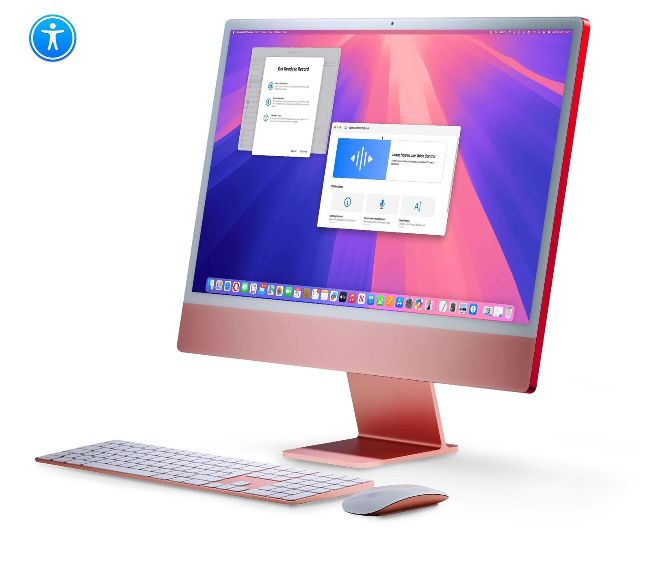
Image credit: Apple Inc
A
p
ple wants as many people as possible to use macOS which is why it’s packed with ultra-useful accessibility features aimed at anyone who would otherwise struggle to interact with its operating system. Over the years, there have been many helpful additions from Voice Control to advanced Zoom and now, with macOS Sequoia, there are more features than ever before.
Aside from allowing users to benefit from Apple Intelligence’s ability to help you to write and more easily navigate your Mac, the latest OS has added Vocal Shortcuts that link unique spoken phrases to an accessibility setting. Sequoia also lets you use Hover Typing so you can see whatever you’re typing as large text, and it enables you to choose custom font sizes for even more of Apple’s own apps.
As you’ll discover, you don’t actually need to be living with a disability in order to benefit from many of Apple’s accessibility features. Some of them will simply save you time or help you better personalise your Mac. To that end, it’s worth exploring the options regardless of your circumstances by clicking the Apple menu, selecting System Settings and clicking Accessibility in the sidebar. You’ll see sections relating to vision, hearing, mobility and speech.
Let’s check them out.
Accessibility shortcuts
You can activate your Mac’s accessibility features via System Settings but once you’ve set them up, it’s easier to use alternative methods. Select Control Centre in System Settings, for example, and you can add an Accessibility Shortcuts menu to the menu bar or Control Centre. You can do the same for Hearing too – background sounds and hearing device settings are just a click away. If you select Accessibility > Shortcut in System Settings you can also determine which Accessibility features appear in a handy Shortcuts panel.