COMMAND-LINE USAGE
Recreating containers using Podman Desktop is a faff.
The good news is that if you learn how to use Podman from the command line, you can recreate containers in seconds rather than minutes. Even better, Podman can be invoked from any shell, including both Powershell and the Command Prompt. Simply right-click the Start button, choose Terminal (Windows 11) or Command Prompt (Windows 10), and you’re good to go.
Containers are created (and recreated) using the ‘podman run’ command. Rather than type these in manually each time, we recommend setting up text files, inside which you store commands like so:
podman run -d --name vaultwarden -v C:/users/username/containers/vaultwarden:/data/-e
SIGNUPS_ALLOWED=false -p 9000:80 --restart always
docker.io/vaultwarden/
server:latest
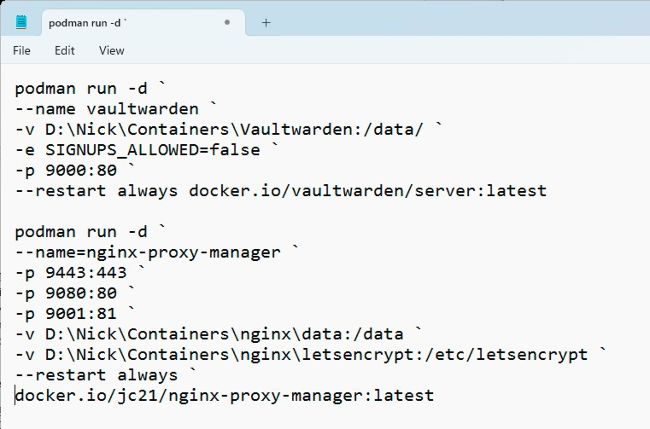
Store your Podman run commands in a text file for easy access.
If this is difficult to follow, you can break this into multiple lines using the ` symbol (see the screenshot).
You can then simply amend the command as required before copying it to the clipboard, switching to your shell window, and pressing Shift + Insert to paste it in. Favor Powershell over Command Prompt, and the command is color coded, helping you to quickly verify it before hitting Enter.