MANAGE YOUR FILES LIKE AN EXPERT

TreeSize Free found 125GB of old files that we could safely remove.
1
FIND AND REMOVE
SPACE-HOGGING FILES
The excellent program TreeSize Free can help you find and delete files you’ve lost track of and have outlived their usefulness. Download the ‘
TreeSizeFree-Portable.zip
’ file from
www.snipca. com/42021,
unzip it, then right-click ‘TreeSizeFree.exe’ and choose ‘Run as administrator’ so it can scan folders that would otherwise be locked.
Click ‘Select Directory’, then ‘This PC’ in the File Explorer sidebar, followed by C:. Now click Select Folder, and TreeSize Free will scan your entire drive, and order your folders by size, with the largest first.
Much of what it finds will be Windows system files, so be careful what you remove. Expand the Users folder, and your own folder inside it, then explore the directories within. As you can see from the screenshot
1 , we’re working our way through the ‘nik’ user folder and have over 125GB of old files sitting in the Downloads folder
2 , many of which can be removed. This includes four versions of the Raspberry Pi operating system, occupying almost 11GB
3
, that we installed several years ago. To delete a file, right-click it, then click Delete in the context menu.
Also, check the ‘Program Files and ‘Program Files (x86)’ folders for particularly large sub-folders containing software you no longer use. Rather than delete these directly through TreeSize Free, though, you can uninstall them via Windows. In Windows 10, open Settings (press Windows key+I), then click Apps, followed by ‘Apps & features’ on the left. Now, in the middle pane, click an app you want to remove, then click Uninstall.
In Windows 11, click Apps, followed by Installed Apps, then click the three dots beside any you want to remove, followed by Uninstall.
Use Bulk Rename Utility to label your images in one batch and watch the changes happen.
2
RENAMEALL YOUR
FILES IN ONE GO
Your camera or smartphone labels every picture with a prefix and serial number. This ensures new pictures don’t overwrite old ones, but does nothing to help you tell them apart. Renaming batches of pictures so they’re more recognizable will help you search for them later.
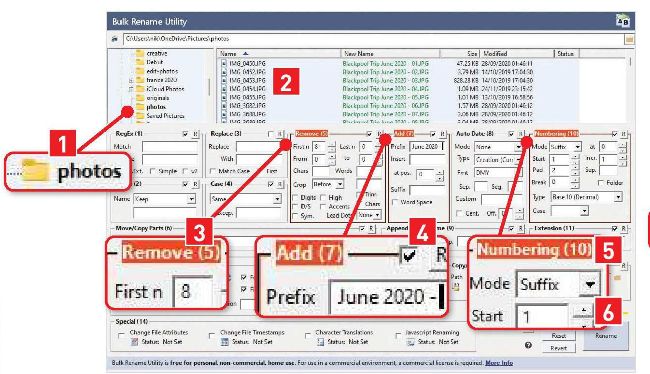
Install Bulk Rename Utility (www. snipca.com/42022), launch it, then in the top-left pane navigate to the folder containing the images you want to rename
1 in our screenshot below) Select these images in the main pane
2 , then use the fields below to implement your changes. We’re using the Remove option to strip out the first eight characters
3
, which deletes everything before the ‘.JPG’ file extension, then Add to prefix the new filename with ‘Blackpool Trip June 2020 -’
4 and Numbering
5 to add a sequential number to the end of each file name
6 . You can preview your changes in real-time in the main pane. When you’ve finished, click Rename to process your selected files.
Tell SearchMyFiles where on your computer to look for missing files.
3
SEARCHFOR MISSING FILES
When you’ve been working on a document but lost track of where you
saved it, you need to be able to search for it without using its name.
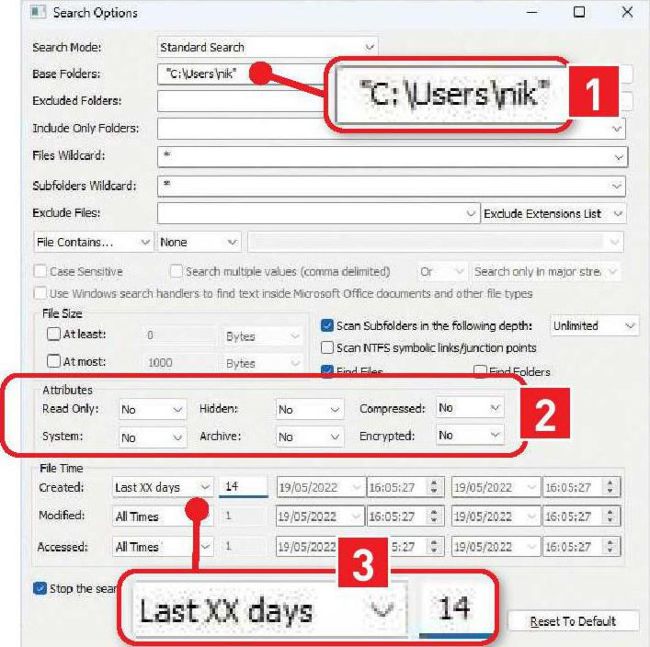
NirSoft’s powerful SearchMyFiles (www.snipca.com/42024) does the job. When you run it, use the box that appears to tell the program as much as you can about the file you’re looking for. In our screenshot below, we’ve told it to search our user folder1 and selected ‘No’ for every option in the Attributes. box2 , so we don’t get a huge list of system files. Finally, we know the file was created within the last two weeks, so we’ve specified 14 days in the File Time box 3 .When you’ve given as much information as you can, click Start Search to scour your selected folders for your missing file.