HOTPICKS
HotPicks
THE BEST NEW OPEN SOURCE SOFTWARE ON THE PLANET
XFE Tauon Music Box Puddletag Scrot Dysk Web Apps Gear Lever RetroArch The AMC Squad LibreWolf HP Linux Imaging and Printing

Mayank Sharma
is grumpier than usual since he binge-watched
TDF: Unchained,
and was then a domestique to open source gems as he raced to the deadline.
FILE MANAGER
XFE
Version: 1.46.2 Web: http://roland65.free.fr/xfe/
If you aren’t using Linux on a well-endowed machine, you can scrape off some load from the hardware using the X File Explorer (XFE). This lightweight file manager is an interesting mix of the classic interface with modern day flexibility. The fact that it can be operated from the keyboard alone will please experienced campaigners.
The XFE project doesn’t put out any binaries, but it isn’t too cumbersome to compile it from source. Grab the compressed tarball from its website and extract it with tar -xvf xfe-*.tar.xz . Then run the ./configure script, and use your distro’s package manager to install any missing dependencies, if at all. Then type make , followed by make install .
If that sounds too cumbersome, you can also pull in XFE from your distro’s official repos. Remember, though, that the version in your repos might be behind by a dot version or two. Fedora users can install it with sudo dnf install xfe , while sudo apt install xfe fetches it for Debian and Ubuntu users.
At first glance, you might be turned off by XFE’s old-school appearance. But unlike your distro’s default file manager, XFE comes up in a jiffy, and it does so without cutting any of the useful file manager functionalities.
At the top of the window, XFE sports a menu bar followed by several toolbars. None of these toolbars are glued to their position, and you can move them around. Of course, you can also head to the View menu and hide any or all of them.
Beneath these, XFE has a location bar and a multipanel interface. On the left you get a directory tree, while on the right is the more familiar directory listing. Just like the toolbars, you can hide several other components in the file manager, such as the side panel.
Some of XFE’s most useful features are its fleshed-out context-aware right-click menu, and a very thorough find utility.
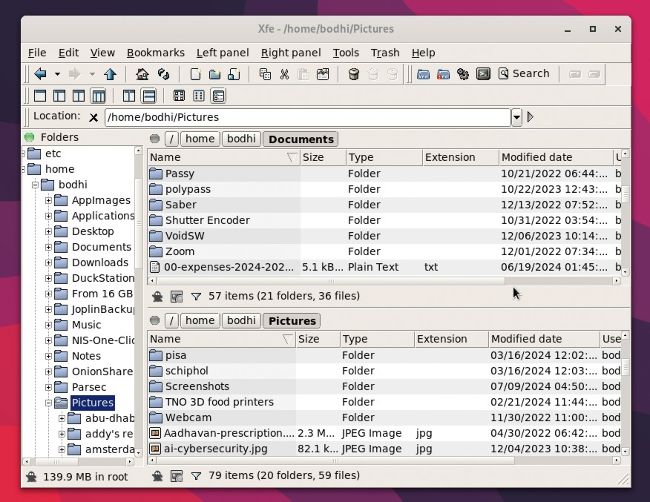
XFE has four prebaked layouts. By default, it uses the tree and panel, but it can also display tree and two panels, stacked next to each other or horizontally.
LET’S EXPLORE XFE...
1 General toolbar
Here you get buttons for the standard file manager actions. You can do all of these and more from the menu bar, so you can hide this toolbar if you don’t use these functions often.
2 Tools toolbar
This toolbar houses some very useful functions. You can, for instance, launch a new normal XFE instance, or one with root privileges. There’s also a button to launch XFE’s find utility.
3 Panel toolbar
Here you’ll find buttons to change the appearance of the file manager. You can split the XFE window into two panes, two panes with tree view, one pane with tree view, or a single pane.
4 Status bar
This area displays different information in the tree view and in the panels. In the tree view, it displays the size of the current folder, while in the panel it displays a plethora of useful details.
MUSIC PLAYER
Tauon Music Box
Version: 7.8.0
Web: https://tauonmusicbox.rocks

Tauon has interesting theming options. Head to Menu > Settings > Themes to switch to a different colour theme. The app can also use album art as a background.