iOS
Try the new-look Camera app
Discover what’s new and what’s changed in latest iOS 26 version
IT WILL TAKE 15 minutes
YOU WILL LEARN To access various shooting modes, adjust mode properties, and use AirPods as a camera remote
YOU’LL NEED iOS 26 or later
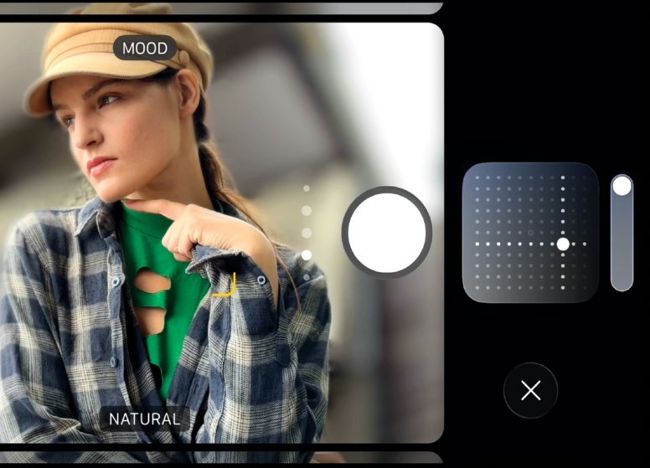
In Photos mode, you can quickly summon the Styles options by tapping the Styles icon at the top left.
In previous versions of the Camera app, you could simultaneously see a wider spread of mode labels (such as Video, Portrait, Spatial, and Pano) spreading out below the Shutter button. iOS 26 streamlines the Camera interface by only displaying the two most useful modes –Photo and Video – by default. To access more hidden shooting modes, such as Spatial or Pano, simply swipe left to reveal them on the lozenge-shaped Liquid Glass button. Swipe right to access the Cinematic, Timelapse, and Slo-Mo shooting modes. By tapping on a mode’s button (or swiping up), you can summon a collection of large icons to adjust various properties specific to that mode, such as Aperture or Exposure.