iPhone portrait photo guide
Take amazing portraits by day or night
Written by George Cairns
As we head into the festive season and new year celebrations, there will be plenty of photo opportunities to enjoy with friends, family and work colleagues. Your ever-present iPhone is most likely going to be your best camera, both for instant access and quality, especially when it comes to capturing stunning portraits of the people in your life.
This feature is packed full of tips, tricks and techniques to help you make the most of the iPhone Camera app’s many shooting modes. We’ll also look at how your iPhone’s various built-in lenses quickly give you a wide range of compositional choices (without having to pause and swap lenses like you do with a bulky Digital SLR camera).
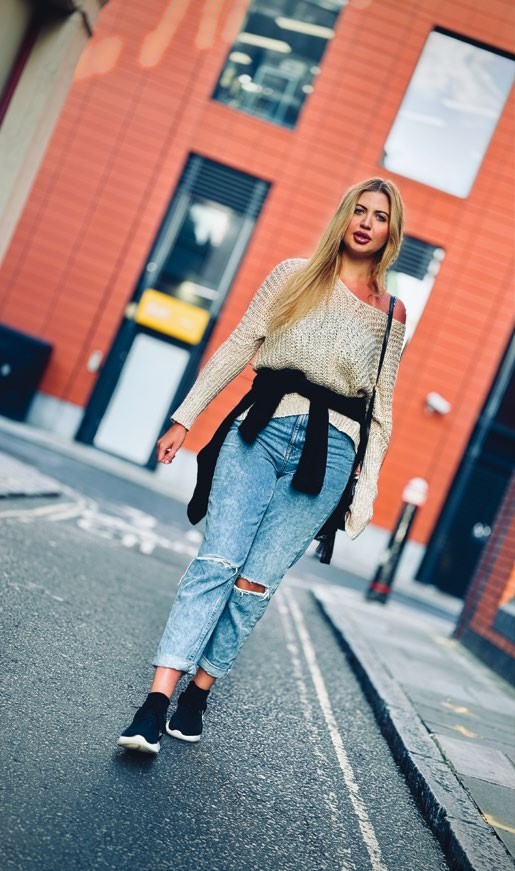
The iPhone 15 Pro Max’s 5x zoom can capture street portraits from a distance.
As the nights get longer you’ll face the challenge of shooting people in low light, so we’ve devoted two pages to capturing colourful low-light portraits. We also recommend some third-party gadgets (such as portable LED lights) to improve the quality of low-light shots, as well as adding three-dimensional ‘modelling’ to a subject’s face.
Your iPhone is a one-stopshop! As well as capturing portraits it enables you to change their colours, tones and composition in its digital darkroom – the Photos app. We’ll explore wide range of post-production techniques (such as adding background blur) to help make your portraits look more like the work of a professional photographer. Your edited portraits will then catch the eye (and the ‘likes’) of friends and followers when you use the iPhone to share your shots via social media sites such as Instagram, Facebook or X (formerly known as Twitter).
The Camera app interface explained
1 Portrait mode
To guarantee a flattering background blur, select Portrait mode. This mimics the professional ‘bokeh’ effect produced by a DSLR lens. Thanks to iOS 17, it’s also possible to add blur to some portraits when shooting in Photo mode (see p65).
2
Focus reticule
Your iPhone recognises and tracks a subject to keep them in focus, courtesy of this rectangular, yellow focus reticule. When editing a Portrait mode image in the Photos app you can change the focal point by tapping on a background object.
3
Aperture value
Portrait mode mimics a DSLR camera’s ability to create a sharper or blurrier background by adjusting the camera’s aperture (which is measured in f-stops). Tap here to adjust the f-stop and change the blur strength before shooting.
4
Light effects
By tapping these buttons you can mimic a range of photo studio light effects to emphasise the contours of a subject’s face for example. You can do this before you shoot or afterwards in the Photos app (as long as you use Portrait mode.)
5
Lens
Tap here to select a lens for your portrait. Here we’re shooting on an iPhone 15 Pro Max so we can use its 5x zoom lens’s 120mm focal length to snap our subject from a distance. This is great for capturing candid street photography portraits.