Power up your Mac
Your Mac is a powerful beast but, with our help, you can make it more powerful still. With our guide, you can eke out every ounce of power
Written by Ian Osborne
Are you confident that your Mac running to its maximum efficiency? Is it still the powerhouse of modern computing it was when you first bought it, or has it gradually been cluttered with duplicates, spacehogging data and endless media? If your Mac’s internal drive is groaning under the weight of endless files, it’s likely to run slower as there’s less space to use as virtual memory. So it’s always wise to keep tabs on what you have on your machine, and declutter it regularly to make sure you’re not storing stuff you don’t need.
And are you using its timesaving and organisation features to the fullest? The Mac has all sorts of things to help you keep on top of your work, with some great tools for the Finder and awesome ways of keeping control of the Desktop. There are some excellent apps available for cleaning your Mac’s storage and organising files too.
Over the next 12 pages, we show you how to cut down on the clutter by identifying duplicates and large, forgotten files, and moving media such as TV shows, movies and music to external drives. We also show you how to get more from your Mac’s often overlooked features, such as Smart Folders, Mission Control and Stage Manager, and more, as well as third-party tools for keeping your Mac in shape.
It’s clean-up time
Decluttering your Mac is one of the easiest ways to speed things up – here’s how
Housekeeping apps: good or bad?
Some Mac owners swear by clean-up and maintenance apps such as CleanMyMac X and MacKeeper, while others have their doubts. Those in favour argue they’re great for emptying caches of unwanted system junk, freeing memory and more. Others say these apps are unnecessary, and perhaps even harmful if used incorrectly. And the same is true of us here at MacFormat; while some of the team are fans of apps such as CleanMyMac X, others won’t go near them. Only you can decide what’s right for you.
Should
your Mac be groaning under the strain of unused files, duplicated data and other detritus, a clear-out and spruce up can work wonders. Here, you’ll discover some of the most commons slowdowns and how to fix them, find out what you can do about duplicates and unused apps, and speed up everything from login items to Spotlight searches.
When you’re hunting for duplicate files, it’s a good idea to limit searches to your Mac’s Applications and Users folders. You shouldn’t delete anything – even duplicates – from the System or Library folders unless you really know what you’re doing.
First of all, let’s look at how you can identify large and redundant files with DaisyDisk (£9.99, daisydiskapp.com). This powerful and popular app can quickly scan your Mac to find large files, categorising them according to type, while purging ‘hidden space’ (that is, the difference between the total used disk space and the total of all files available for scanning). Then we’ll explore some of the other tools you can use – including the macOS Finder.
EXPLAINED Identify space hogs with DaisyDisk >
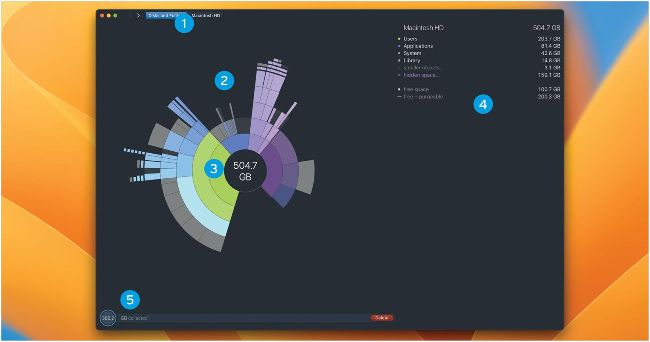
Image credits: Apple Inc, Software Ambience Corp
1 The folder tree
The folder tree identifies which folder or drive you’re currently analysing. Click on one in the line to open it.
2 The disk map
This is a visual representation of the files stored on the drive you’re looking at. Hover over one to identify it.
3 Individual files
Each segment in the wheel represents a different file. Its size represents the actual file’s size, which is detailed on the right.
4 Breakdown
This list breaks down the information of the drive or folder currently being analysed. Click on a category to look at it.
5 Collected files
Drag files here for deletion, then click Delete to erase those files. Also, click here for a list of files currently collected.
HOW TO Clean up with Finder >
1 Open a Smart Folder
Click on the desktop to make sure you’re in the Finder. Click on File in the toolbar and select New Smart Folder. A Finder window opens. Make it large, so you can clearly see the Path Bar, which will get filled in along the bottom.
2 Select file type
Click on the ‘+’ in the top-right corner of the new Smart Folder window. A customisable rule appears. From the first menu option, choose ‘Kind’. Then from the second, choose ‘Any’, and then select the file type you want to check.