POWER UP YOUR MAC
If your Mac’s not running as quickly as it should be, or you just want to squeeze every ounce of power you can from it, read on
WRITTEN BY KENNY HEMPHILL
Image rights: Apple.
Whether you only use your Mac occasionally or you’re the kind of power user who spends hours sitting or standing in front of it every day, it’s likely that you sometimes become frustrated because it won’t run as quickly or as smoothly as you’d like it to or you think it should. It’s also likely that you’ve encountered the dreaded beachball, and that you know that there are things you could do differently that would make using your Mac more productive but haven’t got around to figuring out what they are.
That’s exactly what we’ll do over the next pages. From everyday housekeeping tasks that will keep your Mac running smoothly, to tips and tricks to make you more productive, to third–party apps that can do a lot of the work for you, we’ll cover them all. We’ll even suggest hardware that can boost your Mac’s performance.
If you’ve thought about creating keyboard shortcuts, investigating the new Shortcuts app in Monterey, or dealing with all those duplicate files that you know are scattered around your drive, now is the time to do it. Consider this your prompt and your guide on the journey to a more productive, and fun, experience with your Mac.
While some of what we cover here, like the Shortcuts app, is specific to macOS Monterey, most of it can be applied to any recent version of macOS. However, whichever version you’re running, you should make sure you have installed the latest available update. That way, you know that your Mac has the latest security patches installed. Consider that your first tip.
Optimize your inputs
The way you tell your Mac what you want it to do has an impact on the result
Technology has come a long, long way since the first Mac was launched way back in 1984. One thing that hasn’t changed though, is how we interact with it.While some people use voice commands and dictation software, for most of us, telling our Mac what we want it to do involves a keyboard and either a mouse or a trackpad.
When it comes to choosing which keyboard to use, most Mac users stick with the one that came with their Mac (unless you use a Mac mini or Mac Pro, in which case you’ll have to supply your own). But that’s not always the best idea. The same is true of your mouse or trackpad. For example, if you use a MacBook Pro or MacBook Air predominantly at a desk, you’d be much better off putting your laptop on a stand and using an external keyboard and mouse or trackpad. That way you won’t be hunched over the screen all day. Better still if you can hook up a larger display.
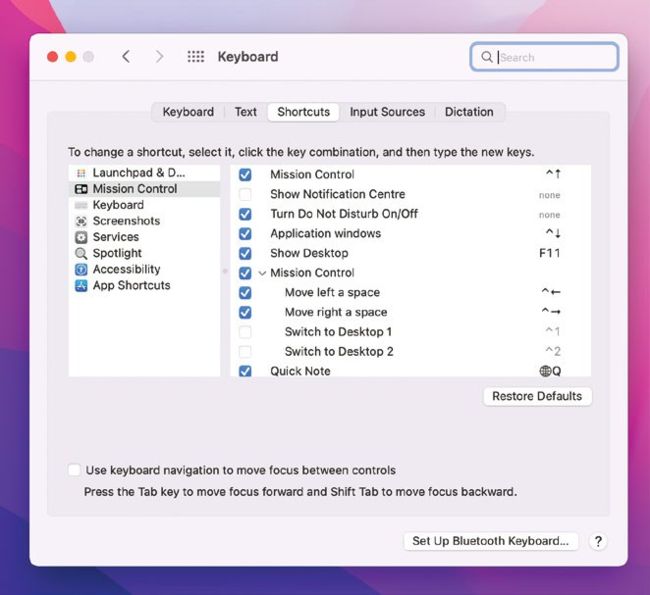
If you don’t like the default keyboard shortcuts, change them in System Prefs.
Even if you use an iMac, the supplied keyboard and mouse may not be the most productive for you. For example, if you’re a gamer, you might be better off with a mechanical keyboard and a mouse with multiple buttons and a low response time. Choosing the optimal set–up for your situation will not only make you more productive and cause you to make fewer mistakes, it will also improve your posture and therefore your overall health.
SET IT RIGHT
Whichever keyboard, mouse, or trackpad you use, you should set it up in macOS so that it does exactly what you need it to do. We’ll show you how to do that in this section by using the options available in System Preferences. If you use a third–party mouse or keyboard, it may come with its own software, which you can use to customize how it works, so check out the literature for that device.
Check out our handy "Shortcuts" reference guide (left) for the keyboard shortcuts you should learn and commit to memory to help you get more done in less time when you’re in front of your Mac. Do that, and you have more time to take breaks. And that’s something else that’s good for your health.
Shortcuts
FINDER
> Show and hide the Dock............... Cmd+Opt+D
> Show app launcher............................Cmd+Tab
> Show Spotlight search............ Cmd+Spacebar
> Show Finder search........Cmd+Opt+Spacebar
> Mission Control....................Ctrl+Up arrow key
SCREENSHOTS
> Save image as file.............................Cmd+Opt+3
> Save image to clipboard..... Ctrl+Cmd+Opt+3
> Save image of selected area as file.....................Cmd+Opt+4
> Save image of window as file...............Cmd+Opt+4+Spacebar
> View Screenshot and recording options................Cmd+Opt+5
OTHERS
> Use app in full screen......................Ctrl+Cmd+F
> Open new Finder window............Cmd+Shift+N
> Show character view to choose emoji..................Ctrl+Cmd+Spacebar
> Open Preferences for front–most app......................Cmd+Comma key
> Invoke Quick Look for selected file....................................... Spacebar
> Close all windows in an app..... Cmd+Opt+W