GB
  
You are currently viewing the United Kingdom version of the site.
Would you like to switch to your local site?
18 MIN READ TIME

iPadOs 15 SUPERGUIDE

With iPadOS 15, your iPad is smarter, more useful, and more fun than ever before

WITH iPADOS 15, APPLE has given the world’s best tablet operating system some very significant upgrades. Productivity features that were previously only available on the iPhone are now on your tablet too, and you’ll find that everything from productivity apps to privacy protections have been given important improvements.

iPadOS 15 is about making your iPad work the way you want it to. Home Screen Widgets can completely customize the information you get, the App Library can make it easier to organize and access your apps, and the improved multitasking features make it easier to work with multiple apps at the same time. Streamlined Notifications are much easier to manage, and the new Focus mode enables you to decide who and what can contact you at different times and places. Ultimately, all of these upgrades make the iPad more user–friendly.

Some of the new features are dramatic, such as the redesigned tabs in Safari, the new Quick Note feature and the ability to set up shared listening and viewing parties in FaceTime. Others are more subtle, such as the privacy improvements in iCloud+, and the ability to customize your memories in Photos. But whether you use your iPad for work, for school, for creating things or for keeping yourself entertained, the improvements here will make you love your iPad even more.

Which devices will work with iPadOS 15?

If you have one of the following iPads, you can run iPadOS 15 — although some features require specific hardware, so for example Live Text in Photos requires an A12 Bionic processor or later.

iPad Pro 12.9–inch (1st, 2nd, 3rd, 4th and 5th generation)

iPad Pro 11–inch (1st, 2nd and 3rd generation)

iPad Pro 10.5–inch

iPad Pro 9.7-inch

iPad (5th, 6th, 7th, 8th and 9th generation)

iPad mini (4th, 5th and 6th generation)

iPad Air (2nd, 3rd and 4th generation)

Home screen, Widgets, and App Library

New ways to organize absolutely everything

>> THE LATEST iPADOS introduces a new way to get organized on your tablet, bringing iOS 14 features to the iPad for the first time. Our favorite new feature is widgets, which have made it across from the iPhone. These can sit anywhere on your Home Screen to provide instant access to whatever you like: Calendar events, the weather forecast, your Apple Music playlist, your favorite photos and so on. To add a widget, simply long–press an empty bit of the Home Screen and tap the “+” icon at the top left to see the available options. As you’ll see, there are lots — including Smart Stacks, which change over the course of the day. Smart Stacks will even predict what other widgets you might like and show them at the top of your Stack.
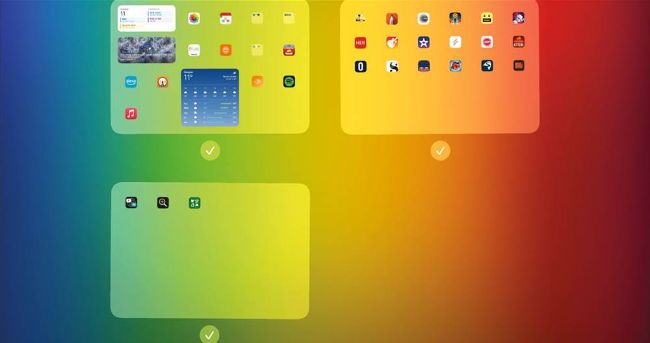
You can reorganize or hide your Home Screen pages by long–pressing a blank area and then tapping the dots that appear at the bottom of the screen.

Widgets can be moved just like app icons, and your apps will move out of the way as you drag a widget around to get it in the perfect place.

The App Library is another iPhone feature made bigger and given a place at the very end of your Dock. It’s a bit like Launcher on the Mac, giving you an easy to navigate place for all your apps to save you swiping on multiple Home Screens. It automatically organizes apps into categories, and you can remove apps from your Home Screen but keep them in the App Library; to do that, touch and hold the app, tap Remove App and then tap Remove From Home Screen.

Unlock this article and much more with
You can enjoy:
Enjoy this edition in full
Instant access to 600+ titles
Thousands of back issues
No contract or commitment
Try for 99p
SUBSCRIBE NOW
30 day trial, then just £9.99 / month. Cancel anytime. New subscribers only.


Learn more
Pocketmags Plus
Pocketmags Plus

This article is from...


View Issues
Mac|Life
February 2022
VIEW IN STORE

Other Articles in this Issue


START
THE RIGHT TO REPAIR
There’s been some exciting things happening in the
LETTER OF THE MONTH
I am frustratingly disappointed with what Apple has
Apple announces Self Service Repair
Comfortable doing your own iPhone and Mac repairs? Now you can get parts from Apple
> Apple Watch Mail privacy issue found
Watch app bypasses iOS 15 privacy features
News in brief
A bite of the Apple
> THE SHIFT
MATT BOLTON wonders if the Apple Watch Series 7 could be a sign that the wearable is ready to be freed from the iPhone
SPOTLIGHT
UP CLOSE AND PERSONAL WITH…
Mac Life
CRAVE
THE GEAR WE’RE LUSTING AFTER
56 APPLE TIME SAVERS
Proven ways to speed up your productivity and reclaim minutes, if not hours, every day!
REVIEWS
REVIEWS
TOUGH TESTING, TRUSTED RATINGS
MacBook Pro 16–inch (2021)
Apple rights the wrongs of the previous gen MacBook Pro — and how!
Logitech C922 Pro HD
A decent, if costly, upgrade over the FaceTime HD Camera
Bowers & Wilkins Zeppelin
Does the new Zeppelin sing like the old model?
The best DACs to improve audio quality
A good DAC can really boost the audio quality on your Apple devices
NuPhy Air75 Wireless Mechanical Keyboard
A keyboard that’s as flexible as it is beautiful
Magnetic Wireless Power Bank
A portable MagSafe charger that betters Apple’s own
MAC DESKTOPSPEAKERS
Power up your Mac experience with dedicated speakers
AUDIOENGINE A2+
Compact and well–built, yet punch way above their weight
APP LIFE
Before Your Eyes
Blink and you’ll miss it
Kaleidoscope 3
Advanced file versioning and comparison for your data
Reincubate Camo Studio
1 Mac + 1 iPhone =a brilliant webcam
Sparklite
Quirky pixel adventuring
Lock
Lock individual apps away from prying eyes
Orbit: Time-based Invoicing
Track time spent working on your projects
6 manual photo and video apps
Take control of your iPhone camera
Best of the best
Can’t find the hardware or app you’re looking for in our reviews section? Then check in here — we’ve highlighted the best in every major category, as voted for by us
How to get the most from the Notes app
Apple’s Notes app has matured into a very useful tool for making and sharing notes, and in Monterey it’s even better
How to get started using Notes
Whether you want to jot down a bar order or store details for a project at work, Notes has you covered
Productive new features
The latest macOS and iPadOS updates bring great new tools
ASK
ASK
TECH SUPPORT & TECHSPLANATIONS
CREATE
CREATE
HOW TO DO ANYTHING ON YOUR MAC, iPHONE & iPAD
Create Quick Actions for Finder to be more productive
Process files and perform tasks in Finder by creating your own Quick Actions using the Automator app
Use Tab Groups in Safari
Keep tabs on your tabs and get your web surfing sorted
Build your family tree
Use MacFamilyTree to create a permanent record of your family history
Recover lostdrive space
Visualize your hard drive and locate large files
Customize iPhone backups
Save space in iCloud by selecting what is backed up from your iPhone
Edit a home movie in iMovie
It’s fun and easy to create impressive home videos on your iPad
Organize media to–do lists
Unleash your inner coach potato with this media filing system
Boost your activity
Fancy getting fitter? Your Apple Watch is here to help
Apple’s AI smart tech
We explain machine learning and Apple’s Neural Engine
RAM
What the VideoPad 2 might have looked like
An auction revealed a design for the Video Pad 2, canceled by Steve Jobs when he returned to Apple
Chat
X
Pocketmags Support