PLAY CLASSIC RETRO GAMES ON YOUR PC
Discover how to emulate old computers, consoles and even arcade machines with Nick Peers.
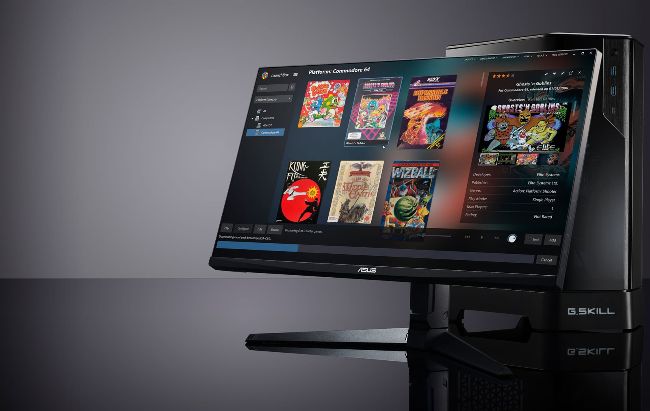
Once set up, browse your games via LaunchBox’s library view.
© LAUNCHBOX
WHEN IT COMES TO NOSTALGIA, you can’t beat a bit of retro gaming. Why dig out your old computers and consoles when— armed with the right tools, tips, and knowhow—you can recreate your old favorites using your own PC? Emulation—the art of recreating one type of computer in another—is nothing new, as anyone who has attempted to play old 8-bit games on 16-bit hardware will attest. But as PCs grow ever more powerful, their ability to emulate older machines has only got easier over time.
These days, you can emulate just about any gaming machine from yesteryear on your PC, including arcade games. The more powerful your PC, the more options you have, but you don’t need anywhere near the latest hardware to relive games released in the 80s and 90s. In this feature, we’ll reveal everything you need to know about creating your own retro-gaming environment, from standalone emulators to slick frontends that make running a variety of games across a multitude of platforms as easy as it can be. We’ll even help you spec your own dedicated retrogaming PC and show you how to run retro games on any PC to hand, armed only with a USB thumb drive. Enough chatter—the
LET’S BREAK DOWN WHAT you need to enjoy retro gaming. First, you need some form of emulator for whatever platform(s) you wish to recreate. Virtually every home computer ever built has at least one emulator available for it, from popular classics like the Commodore 64 and Amiga to more obscure machines like the Welsh Dragon 32 and Japanese MSX family of computers. The same is true for games consoles, whether you’re a fan of Sony, Sega, Xbox, or Nintendo. Long story short, whatever gaming platforms you’ve owned in your life, you’ll almost certainly find an emulator for it.
If you spent most of your youth hanging out in arcades, you’ll also be pleased to learn that it’s possible to recreate classic arcade games on your PC too. The best platform for this job is MAME (www.mamedev.org), on which hundreds of classic games from the 70s onwards are widely available. There’s even an emulator for playing classic PC games— see the ‘Play Classic PC Games’ boxout for full details.
If you’re only interested in emulating one or two old machines, then the simplest thing to do is source only those emulators you need, then use them as and when you fancy a bit of nostalgic gaming. If this idea appeals, check out the box opposite on picking and choosing standalone emulators (along with some tips on which emulators work best).
TIE MULTIPLE EMULATORS TOGETHER
Setting up and configuring individual emulators can also be a fiddly process, so if you fancy sampling from a wide range of platforms—those of friends and farflung family members as well as your own collection—then you’ll be pleased to learn there are umbrella projects out there that aim to provide a single frontend for all your retro gaming needs.
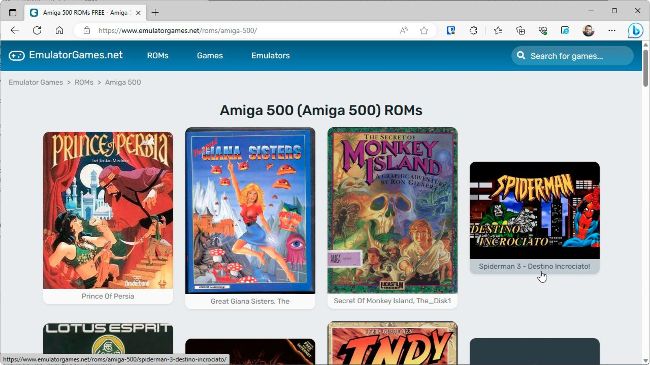
You’ll find most classic games available to download online.
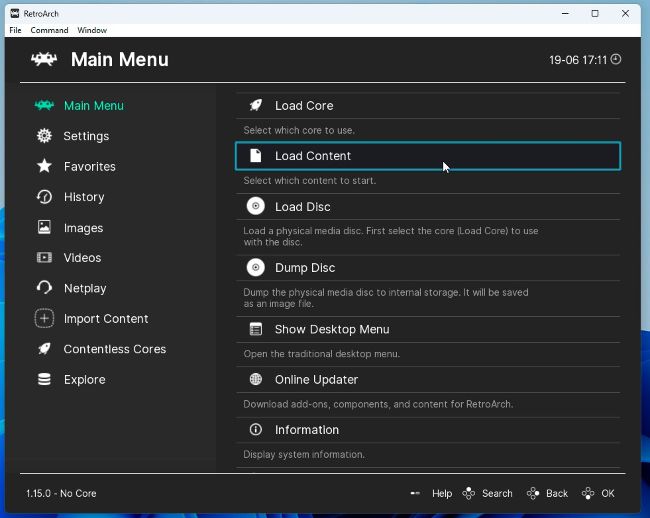
RetroArch is a basic—but not particularly intuitive—frontend.
The process is driven by the Libretro API (www.libretro.com), which is designed to help developers create both games and emulators. Libretro can package both games and emulators into single files, which can then be organized under a single package for easy access. These files can then be packaged together under a single ‘frontend’ application to provide a consistent end-user experience that covers all your retro-gaming needs.
Libreto also comes with an official ‘reference’ frontend: RetroArch (www. retroarch.com). This is available on all major desktop, mobile, and even console platforms—there’s even an online version (https://web.libretro.com) you can run in your browser. The aim of Retroarch is to keep everything organized in a single location while providing you with a relatively consistent user experience— at least up to the point where you launch each emulator. On top of this, frontends also strive to simplify the often-awkward task of sourcing files and configuring them to get each emulator up and running.