Answers
Got a burning question about open source or the kernel? Whatever your level, email it to lxf.answers@futurenet.com
Neil Bothwick hammers open your kernel and walks away.
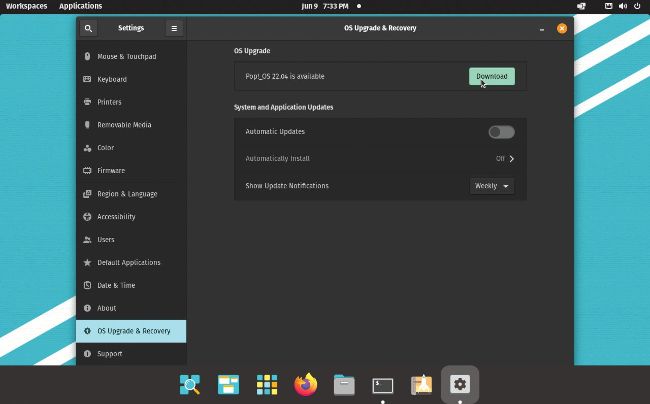
Where a distro offers a path to upgrade to a new version, it’s usually less work than reinstalling.
Q Pop!_OS woes
I recently refreshed my Pop!_OS install. Afterwards my account was no longer available on the lock screen or user settings screen, but I could log in using the User Not Listed button on the login screen. I did some duckduckgoing and decided to rename my home folder, then delete my old account and create a new account with the same username as before. I then deleted the generated home folder and replaced it with my old home folder. Is there a better way to do this, and is there a program I could use to reinstall some applications that I always install after an OS reinstall? I realise I could just make a bash script, but was wondering if there was an easier way.
Kieran Klukas
A While deleting and recreating your user like this seems to have worked, there is a risk. Linux uses numeric user IDs (UIDs) to determine who owns what. /etc/ passwd is used to map user names to UIDs. The first user usually has a UID of 1000, but if your replacement user had a different UID, say 1001 because the system didn’t want to reuse an ID, you wouldn’t have write access to your home directory or any of its contents, which can cause the desktop to fail to load.
The fix for the problem is obscure, but simple to implement. For some reason the account for your user has been incorrectly flagged as a system account, and those users aren’t included on the login screen.
Run this commend in a terminal:
$ sudo nano /var/lib/AccountsService/ users/USER
where USER is your user name. Change the setting for SystemAccount from true to false and press Ctrl+X to save and exit.
Your user should appear in the login screen.
You can generate a list of all installed packages using:
$ dpkg --get-selections | cut -f1 >packages. txt
The dpkg command lists information on all installed packages; cut extracts just the first item from each line, the package name. But this includes everything installed, including dependencies, so installing from this list would muck up the package manager’s dependency tracking.
Keeping a list that you could pass to apt install is one way to do it:
$ sudo apt install $(cat mypackages.txt)
A better approach is not to reinstall in the first place. Rather, you should use the option to update your distro to the latest version. In Pop!_OS, this can be found in the Settings program, under OS Upgrade and Recovery. Hit the Download button and leave it for a while. You should come back to the latest version of Pop!_OS with all your favourite applications still present.