Problems Solved
Our experts solve all your tech problems
Email us your problem and we’ll try to help: noproblem@computeractive.co.uk
PROBLEM OF THE FORTNIGHT
Will an authenticator fix my SMS woes?
Q As a regular reader, I’ve noticed an increase in letters and articles discussing passkeys, two-factor authentication (2FA) and authenticator apps. To be honest, I’ve not taken much interest – until now.
Recently, I received an email from my pension provider telling me I could no longer receive login codes via email and would need to use SMS or install an authenticator app. SMS is an issue because I’m not that attached to my phone, and it might not be with me when I need a code. Does the same apply to an authenticator app?
Can I use different authenticator apps on different devices? Will lesser-known apps like Authy remain available and free if I commit to them? How easy would it be to change to a different app if I needed or wanted to?
Chris Ellison
A These are all good questions. First, at least in terms of receiving 2FA codes, if you don’t keep your phone to hand then an authenticator app will be no better than SMS. That’s because, while such an app can generate codes without a mobile signal – and instantly – you still have to read the string of digits from your phone’s screen.
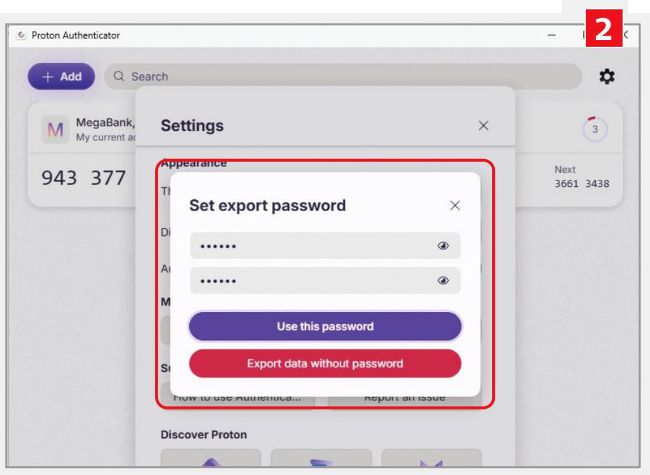
Proton Authenticator has the option to export data to another authenticator app should you decide to switch providers
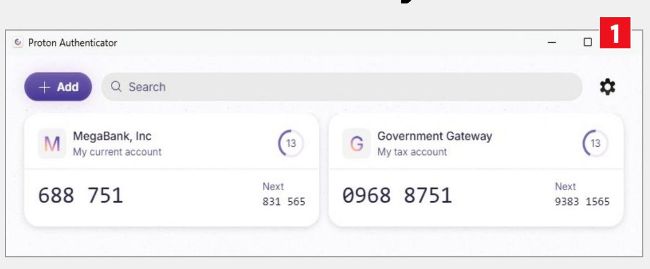
Apps such as Proton Authenticator do away with the need to use a phone
An obvious solution would seem to be a 2FA app for Windows that lives on your PC. However, big companies such as Microsoft and Google maintain only mobile apps. This is because they actively promote the idea that two-factor authentication is based not just on what you know, but also something you have. From this viewpoint, the thing you know is your password (the first factor), while the second factor is something you have – such as a smartphone. These days there’s also something you ‘are’, meaning unique biometric factors such as fingerprints or your face. Collectively, this is known as multi-factor authentication (MFA).
But that’s all background to explain why the best-known 2FA/MFA apps exist only for mobile devices. There are authenticator apps for Windows PCs, such as the free Proton Authenticator (https://proton.me/ authenticator – see screenshot 1 ), which works just fine. This will remove the need to keep your phone to hand so you can read the code on the screen.
There are also 2FA code-generation features in the paid-for editions of popular password-management apps such as Bitwarden (www.bitwarden.com) and 1Password (www.1password.com).
You can use a variety of different authenticator apps if you wish, and on different devices, but we’d imagine that most people would find it easier sticking with just one.
Regardless, it’s important to understand that keeping a 2FA code generator (and the associated secret keys) on a Windows PC does increase your risk slightly: if someone gains access to your computer and knows your Windows password, they can also access your 2FA codes. That’s why Microsoft and Google promote smartphones as the second factor.