Perform major surgery on video
YOU’LL NEED THIS
MKVTOOLNIXGUI
Your Swiss army knife for editing, splitting and merging video files. Optional extras include BOX4 to remux your outputted MKV files back to MP4 after editing them
what’s in that track—the number of channels and bit-rate for an audio track, or the display resolution in pixels if it’s a video.
A
1FIRST STEPS Head to https://mkvtoolnix.download/downloads.html, where you’ll find download links for all major operating systems. Click Windows to reveal both installer and portable versions are available. Installation is straightforward, while the .7z portable archive can be extracted using 7-Zip (www.7-zip. org) and then placed in your portable apps directory.
»
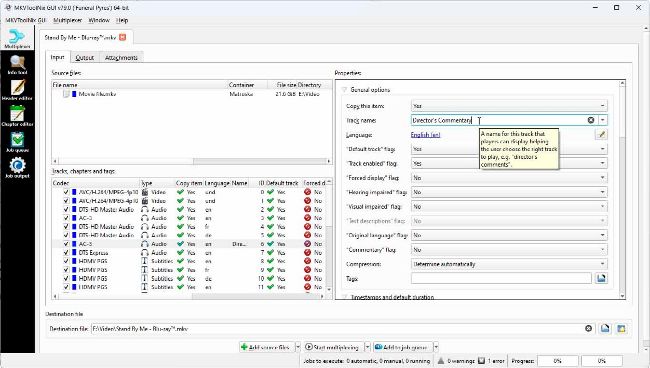
Once in place, open MKVToolNixGUI and you will find yourself at its primary screen: the multiplexer. This is the heart of the tool and allows you to perform all kinds of surgery on your media files as we’ll see over the following steps. Start by rightclicking inside the Source files box and choose ‘Add files’ to add the first file you need to perform surgery on.
»
MKVToolNixGUI may only export video files in MKV format, but you can import a wide range of media files into it. Click the ‘All supported media files’ dropdown next to the ‘File name:’ field to see which video, audio, and subtitle formats it can work with.
»
Once a file is opened, you’ll see information about its tracks (video, audio, and subtitle) appear in the panel below it, split into multiple columns (right-click the column header to customize what’s shown). The available information includes the track type, the codecs used, whether it’s the default track chosen for playback, and a Properties field providing a handy summary of
WHEN IT COMES TO YOUR MEDIA streamingtoolkit,makesureyouleavespaceforMKVToolNixGUI.
There is MakeMKV for ripping discs and Handbrake for converting them to space-saving (and universally compatible) formats, but what happens when you want to perform surgery on a file? MKVToolNixGUI is the operating knife you need to splice, dice, and edit the attributes of your media files. Despite the name, MKVToolNixGUI can import most popular video formats.
Not only can you combine files into one single video or split a video into separate files, but you can edit their properties, rename commentary audio and subtitle tracks so they’re easier to spot and select in compatible players, remove unwanted tracks from your video to save space (or splice in a track from another source), and even construct your own chapter structure to help you navigate a lengthy movie quickly. MKVToolNixGUI is even the place to go to correct display issues with files due to incorrect aspect ratio settings. We’ll show you how to do all this and more, but your journey with MKVToolNixGUI won’t end there. We’ve barely had time to scratch the surface of what this powerful program can do.