JOPLIN
Take and organise notes with ease
Nick Peers reveals how to put your thoughts and ideas in order with the note-taking app to rule them all.
Credit: http://joplinapp.org
OUR EXPERT
Nick Peers uses Joplin for everything from recording meter readings to tracking his insatiable desire for more Blurays. Hmm, does that make Joplin an enabler of his habit?
If you’re looking for an app to record and organise your notes and ideas, there’s no shortage of options. From the free and basic (Simplenote) to paid-for and powerful (Evernote), we’ve tried most of them over the years. But when it comes to delivering the best blend of features in a simple user-friendly interface, with flexible sync options and apps spanning all major mobile and desktop devices, nothing holds a candle to the mighty Joplin (https:// joplinapp.org). And we’re not just saying that for the purposes of this tutorial – the author has been using Joplin as his go-to notes app for the last four years.
Joplin is packed with all the features you need to create – and edit – notes of all shapes and sizes, whether simple plain text or detailed formatted text containing tables, diagrams, file attachments (including multimedia) and more. Apps exist for mobile and desktop – there’s even a web clipper for capturing entire pages as notes – and everything can be synced via your choice of cloud platform (and, of course, encrypted for extra security). In fact, there’s so much to say about Joplin, we’re going to stop right here and let this tutorial do the talking for us.
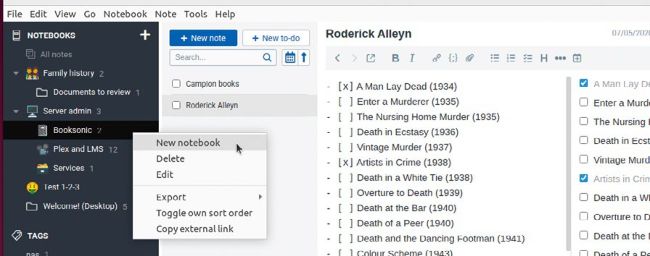
Notebooks can be nested inside other notebooks to create a multilevel hierarchy (drag existing notebooks to move them).
QUICK TIP
Transfer selected notebooks to another instance of J oplin without using sync by exporting them: right-click the notebook and choose Export > JEX – Joplin Export File. Once copied to your target machine, select File > Import > JEX – Joplin Export File to transfer the notebook across.
CAPTURE WEB PAGES
To capture information from the web – either as page snippets or basic screenshots – you need to install the Web Clipper extension in Firefox or any Chromium-based browser with access to the Chrome Web Store. The quickest way is through Joplin itself – go to Tools > Options > Web Clipper, and click Enable Web Clipper Service, before clicking the relevant link to install the extension.
Once in place, you need to return to Joplin to confirm authorisation – click the relevant Grant… button and you’re good to go. Pin the Joplin button to your browser toolbar and when you come across an interesting web page, click the button to reveal six clip options. You can clip the entire page as text-only (simplified), Markdown or HTML. You can also capture a selected portion of the page, take a screenshot or simply clip the URL.
Once selected, you’re prompted to select which notebook to save the new note to – you’ll also see options to add tags (existing tags pop up as suggestions as you type) and edit the note title if required. Once done, click Confirm and wait for the note to be created, before clicking Open Newly Created Note to open it in Joplin.