WIPE ALL YOUR OLD DEVICES
Erase your personal data from unused devices, so you can sell or recycle them safely. Robert Irvine explains how to securely wipe your PC, laptop, phone, printer, TV and more
WHAT YOU CAN DO
• Reset your PC and remove all the data stored on it
• Shred your deleted data to make it impossible to recover
• Erase your phone or tablet with a factory reset
• Wipe your Wi-Fi password from an old router
• Restore your wireless printer to factory settings
• Delete personal information from your smart TV
Most of us have a drawer or cupboard containing old phones, tablets, laptops and other devices we no longer use. We don’t usually hang on to them for sentimental reasons, but because we’re not entirely sure what to do with them.
Last December, a survey by the Information Commissioner’s Office (ICO) found the average Brit has three unused devices at home (www.snipca.com/54746). While that statistic isn’t surprising (aside from being on the low side), more interesting was the reason why.
The ICO revealed that 29 per cent of UK adults hoard their old tech because they don’t know how to erase their personal information. Why risk hackers and nosy parkers gaining access to your data, when you can leave the device gathering dust at home?
That lack of knowledge (or confidence) is a shame, because lots of old tech has a potentially useful second life – whether you sell it online, take it to a recycling centre or donate it to a charity shop that accepts electrical items.
In this feature, we explain how to securely wipe all your data from all your devices, so it can never be recovered. You can then sell or recycle with total peace of mind, clear out your cupboards and drawers, and earn a little bit of extra cash.
WIPE YOUR DESKTOP PC & LAPTOP
Reset and wipe your PC through Windows
The simplest way to wipe your PC or laptop is to use the Reset option in Windows. This built-in feature removes all your personal files, software and settings, and can delete and overwrite all the data that’s left behind, making it practically impossible to recover.
It’s essentially a factory reset, and will reinstall Windows afterwards, either from the installation files stored on your PC, or by downloading the latest version from the ‘cloud’. For most PC users, this option will be sufficient, but there’s still a small chance someone could recover data using specialist software. If you’ve stored very sensitive files on your hard drive or SSD, consider using a more powerful third-party tool to ‘shred’ your data – as we’ll explain in the next tip.
To access the Reset feature in Windows 10, open the Settings app and click ‘Update & Security’. Choose ‘Recovery’ and click ‘Get started’ under ‘Reset this PC’. In Windows 11, click Windows Update in Settings and select ‘Advanced options’. Choose ‘Recovery’ and click Reset PC.
When the ‘Reset this PC’ window opens, click ‘Remove everything’ and choose whether to reinstall Windows from a ‘cloud download’ or from local files. As you won’t be using the operating system if you’re selling or recycling the PC, it’s quicker to select ‘Local reinstall’ than download a fresh copy of Windows.
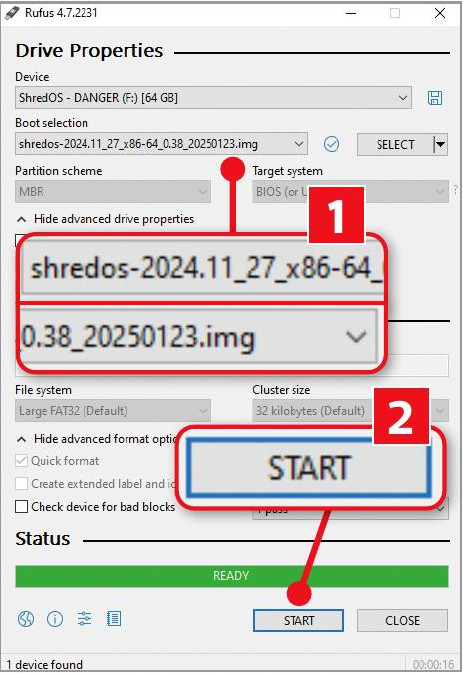
Use Rufus to create a bootable USB stick that runs ShredOS

DoD Short will make your deleted data impossible to recover
On the next screen, you’ll see that Windows is set to remove apps and files, but not to clean the drive afterwards – and to delete files only from the drive it’s installed on. To remedy this, click ‘Change settings’ and switch on the options to ‘Clean data’ ( 1 in our screenshot below left) and ‘Delete files from all drives’ 2 , so that both say ‘Yes’.
Click ‘Confirm’, double-check the settings are correct, then click Next. Finally, click Reset to wipe all data from your PC and reinstall Windows. This will take at least an hour.
Erase everything by ‘shredding’ your data
As mentioned earlier, the Reset tool in Windows overwrites all data after wiping your hard drives. It does so by writing binary zeroes to every sector of the drive, but only performs a single ‘pass’, which Microsoft considers sufficient to make deleted files unrecoverable.
For total peace of mind before you sell or dispose of your PC, use a third-party tool to overwrite your data using multiple passes and techniques (not just zeroes) – a process known as ‘shredding’. The best free option used to be ‘Darik’s Boot and Nuke’ (DBAN, www.dban.org),but this hasn’t been updated for 10 years and the company that owns it now refers website visitors to its paid-for software.
Instead, we recommend ShredOS, which – like DBAN – runs from a USB stick to erase everything on your computer, including Windows. It’s a very powerful tool that boots from your computer BIOS or UEFI, so it’s not to be used lightly, but it lives up to its name by thoroughly shredding your data.