BBC BASIC
Relive your BBC Basic days!
Turn your home system into a BBC Micro by following David Bolton’s advice to download BBC Basic and write programs just like it’s 1982.
Credit: www.bbcbasic.co.uk/bbcsdl
OUR EXPERT
David Bolton learnt to program in Basic back in the dark ages, which helped him get an O Level in computer science long before personal computers were even a thing.
The BBC Micro was launched 42 years ago, in 1981. Like other home computers of that era, T such as the TRS-80 and CBM Vic-20, it came with a built-in Basic interpreter. Unlike most other home computers, this wasn’t created by Microsoft but was one that Acorn had created.
A former BBC engineer, Richard T Russell, who was involved with the BBC Micro development, has developed an excellent open source version of BBC Basic. You can find the source code on GitHub (https://github.com/rtrussell/BBCSDL). It’s cross-platform and comes in two versions: BBC Basic for SDL 2.0 and BBC Basic Console Mode edition. It’s available on platforms such as Linux, Windows, Android and Raspberry Pi. We’re using a Pi but you can follow along on PCs, too.
After you’ve installed it, take a look at some of the example games and programs that come with it. All include source code and are pretty good. If you’ve ever wondered how to program a sudoku game including the generator and solver, it’s all there. The Aliens demo shows moving rotating objects at a high frame rate, achieving 60fps for 80 objects on a Raspberry PI 4B.
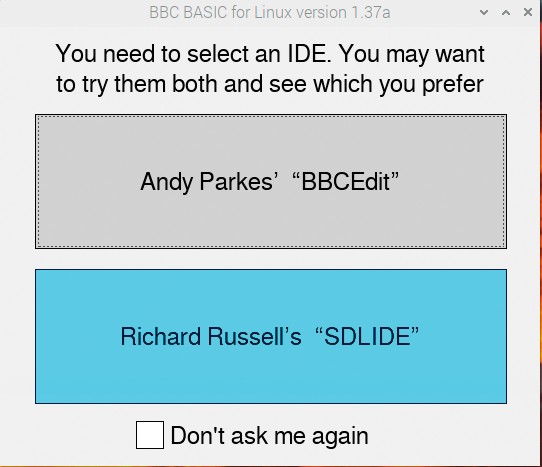
The two IDES that you are offered when you start BBC Basic.
The two IDES
When you click the BBC Basic icon, you are offered two different IDEs: BBCEdit or SDLIDE. After trying both, if you decide you want to stay with your favourite, just tick the Don’t Ask Me Again checkbox. However,
INSTALLING BBC BASIC SDL
There are two versions of BBC Basic, the console version and the SDL version, which has better graphics. In a browser visit www.bbcbasic.co.uk/bbcsdl. Scroll about halfway down the page and you’ll see a table with downloads for different platforms. Select the one appropriate for your system, usually 64-bit x86; we’re going with 64-bit Raspberry Pi. If you’re not sure, use the terminal command uname -m and it should show aarch64 on 64-bit Pis (x86-64 for PCs) or armv7l for 32-bit Pis (x86 on 32-bit PCs).
After the ZIP file has downloaded, in File Manager open the Downloads folder, then right-click and on the pop-up menu click Extract To. Pick a folder (your home folder is fine) and it creates a bbcrpi64 folder (on 64-bit or bbc-rpi on 32-bit). In that folder, you should see an examples folder, a lib folder and some other files. Find the install-rpi.txt file and right-click to open it in a text editor. Now copy the six lines that start sudo apt-get install including the two chmods and paste them into a terminal, then press Enter. You may find it already has some of the SDL files installed, but don’t worry.