Answers
Got a burning question about open source or the kernel? Whatever your level, email it to lxf.answers@futurenet.com

Neil Bothwick finds the fault in our stars and fixes em!
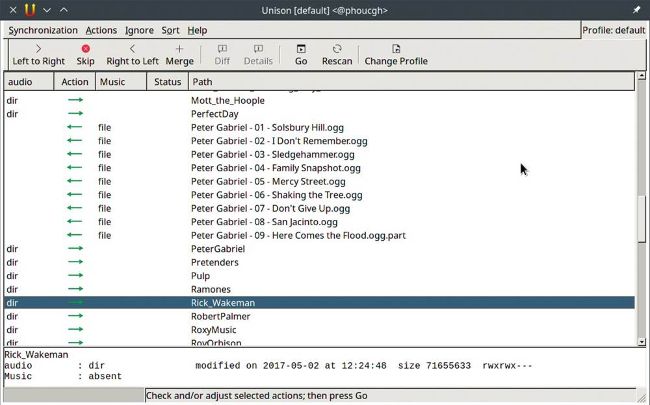
Unison can perform two-way synchronisation of directories, either with a GUI or from the command line.
Synchronised sounds
Q I have a music collection that’s stored on both local and external drives. I have just sorted through all the duplicates with
fdupes.
Now my local collection is only two-thirds of my external collection.
I could delete the external copy and re-copy everything from local to external again. This would take hours, but at least it would be done afterwards. I’m looking for a more sophisticated approach that builds on the fact that every file stored at local is also stored on external. On external the files are just not sorted right and lots of duplicates are present.
Because I have two more collections to sort through, it would be nice to have a better solution then having to copy everything over multiple times.
Joe Doyle
A The utility you’re looking for is rsync. As the name implies, this synchronises sets of data. Let’s say that your local and external directories are mounted at ~/local and ~/external. Then a simple sync is
$ rsync -a ~/local/ ~/external/
The -a option is a shorthand flag that enables preserving timestamps, file ownerships, permissions and recursive scanning. The trailing slash on the directory names is significant to rsync. It means to copy the contents of the directory, and without it the directory itself is copied. So this command copies ~/local/foo to ~/external/foo, and without the trailing slash it would be copied to ~/external/local/foo. Rsync compares the files at the two locations and only copies those that don’t exist or are different on the destination. In addition, it can also copy the parts of large files that have changed.
As shown, this command copies missing files but doesn’t give true synchronisation as you have asked for, because it doesn’t touch files on the destination that don’t exist on the source. To get what you need, add the --delete option. Rsync is also able to copy to a remote computer using ssh, rather than using a network share, for example:
$ rsync -a --delete ~/music/ user@host:music/
If the path on the remote host starts with a slash, it’s treated as an absolute path. Otherwise, as shown here, it’s relative to the remote user’s home directory. You’ll probably want to set up ssh key authentication to avoid having to give the password every time you run this.