CURA
Getting started with Cura and 3D printing
Not getting the quality of prints you expected from your 3D printer? Ali Jennings shows you the essential steps the manuals often miss.
OUR EXPERT
Alastair Jennings has been obsessed with 3D printing for well over a decade. And it all started with a large, heavy, noisy and frankly terrible 3D printer.
Just purchased your new feature-packed 3D printer, but failing to reproduce the high-quality prints you’ve seen advertised? Don’t worry, this is quite common, and even though the sample print that shipped with the machine may have printed perfectly well when it comes to printing your own models, things can start to go a little astray.
If you’ve already extracted a decent print from your machine, you’re well on the way to a happy 3D printed life. This tutorial will still point out a few tips and tricks to help that continue. If you’ve roughly set up the printer and prints are a little hit and miss then we’ll delve into Cura’s and the hardware settings you need to check.
Don’t worry if 3D printing is new to you, and your machine has arrived or is about to. We’ll delve into how to check your machine, set up Cura and look at some of the common settings that many manufacturers often skip over.
That leaves the final group those of you who have the printer but as yet have progressed no further than getting it to make awful sounds every time you try to print. By the end of this tutorial series you should be 3D printing like a pro.
QUICK TIP
Don’t leave your 3D filament lying around. Its filament will be one of the biggest influences on your 3D printer’s print quality. Once you open a new pack of filament, keep it in a dry and dark place when not in use, preferably in a sealed container and at a constant temperature.
Read that fine manual!
The first step is to read the manual, if instructions come with your printer. As you flick through the pages, pay special attention to the cable or wire routing. How this is positioned and fixed to the frame can make a huge difference to the operation of the machine. It can be the case that a wire or cable is causing undue stress or friction on the motors. This in turn affects the speed of motion, directly reducing the print quality.
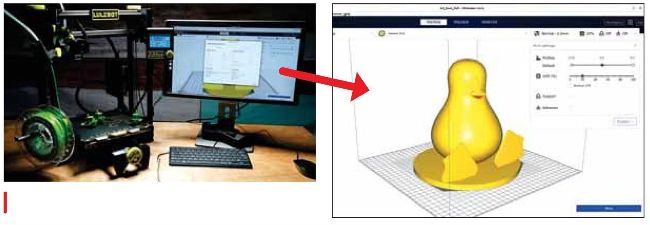
When it comes to successful prints a little time fine-tuning your printer and CURA settings can go a long way to better, more productive prints.
Part One!
Don’t miss next issue! Subscribe on page 16
Check the space required for your printer. It may look quite compact, but once it’s switched on and come to life, 3D printers have a habit of expanding. Does the printer have enough space on the work surface in order for the build platform to move back and forth freely? Is there room for a filament reel? It’s common to clear a space on a worksurface, only to find that a cupboard is blocking the filament holder. 3D printers, however small, take up more space than you’d imagine.