TECH SUPPORT & TECHSPLANATIONS
ASK
> Safe install of macOS 10.14
I want to install macOS Mojave on an external drive, but can’t run its installer in Monterey, as it’s supposedly damaged. Where can I get an intact copy?
EXPERT ADVICE
Our resident genius solves your Mac and iOS problems
Email Mac|Life at ask@maclife.com
Unruly snapshot
SOMETIMES SNAPSHOTS TURN out to be larger than expected and free space shown in the Finder falls worryingly.
Although this should be managed automatically, it can cause alarm and block necessary installations and updates. The Storage view of About This Mac may not be helpful, as this gets lumped into System Data, and only Disk Utility gives an accurate picture.
While we can save space in backups by excluding large files like virtual machines, a snapshot copies the file system for the whole volume, including everything we don’t want backed up. It grows larger the longer you leave it, so forgetting to hook up your notebook’s backup disk for a couple of days can soon steal tens of gigabytes. So, moving those files to a separate excluded volume spares you that overhead, and in APFS comes almost cost–free. Phew!
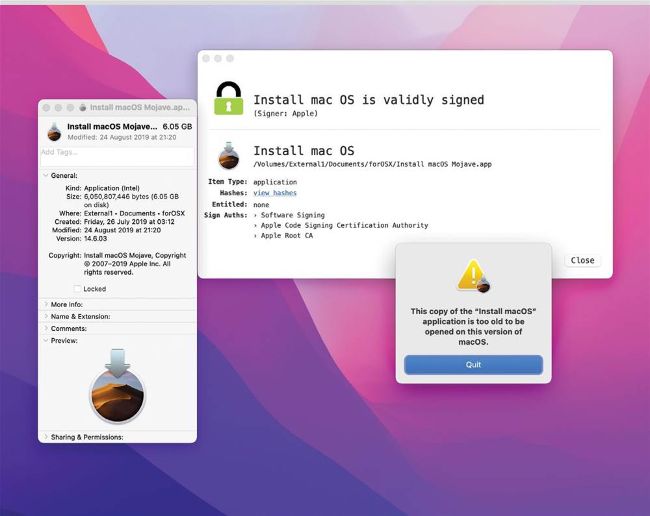
Although this Mojave installer’s signature seems OK, Monterey claims it’s too old to be used.
If you see this or a similar error when trying to install an older version of macOS, it means one or both of two things. If you downloaded the installer before the end of October 2019, its Intermediate security certificate will have expired, making it unusable. You’ll need to download a newer copy from Apple. In any case, recent versions of macOS take exception to you wanting to install most older versions, and the only way to do that is when started up from an external bootable installer, such as a USB flash drive or a partition on an SSD.
In Disk Utility, format it in HFS+, which is essential if it’s to work. Follow the instructions given by Apple at bit.ly/ ml194macosinstall to turn that into a bootable installer disk. To start a T2 Mac from that, first restart it in Recovery mode and enable it to boot from external disks in Startup Security Utility, then restart your Mac holding the Opt key to select the external drive. None of this can work on M1 Macs, of course, as they can’t run any version of macOS before Big Sur, even as a virtual machine.