DOCTOR
THIS MONTH THE DOCTOR TACKLES...
> Store Malfunction
> Boot Issues
> RGB Compatibility
No Store Downloads
My current problem is with the Microsoft Store. Having read somewhere (I think) that some future Windows 10 updates will be coming through the Store, and having discovered my Calculator app had stopped working some time ago, I thought I’d remove it and reinstall it from the Store. But while it comes up OK, whenever I click the “Get” button, nothing happens.
I’ve tried running WSreset. exe, which didn’t fix things, and have tried resetting the Store under “Settings > Apps > Microsoft Store > Advanced Options,” but still no change. I’ve also tried PowerShell commands— which I was able to verify had removed and reinstalled the Store—but that made no difference either. I’ve also tried signing out of my Microsoft Account and back in, but to no avail. The Store runs fine on my laptop, so I’m running out of things to try.
–Gerry Exstein
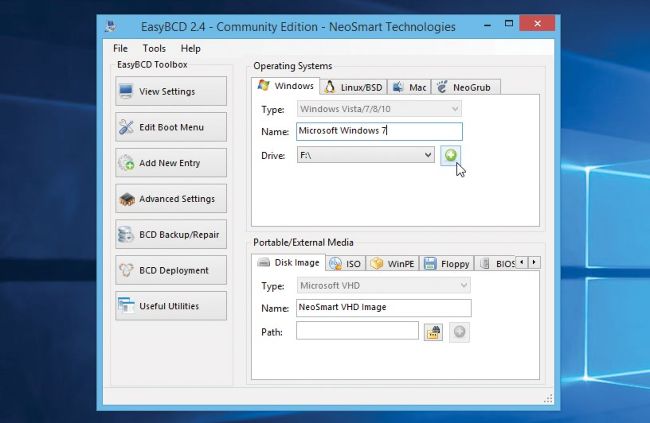
Remove unwanted dual-boot entries with EasyBCD.
© MICROSOFT
THE DOCTOR RESPONDS: Ah, the Microsoft Store—bane of many a Windows user. OK, you’ve performed the basic repair steps, so next we need to widen the search for corrupt files: Right-click the “Start” button, open “Command Prompt (Admin),” and issue this command: sfc /scannow
If errors are found, let it fix them and run the scan again. If it fails to resolve the problem, try DISM instead: dism /online /cleanup-image /checkhealth
The check should complete in seconds on a fast machine. If problems are found, download the Media Creation Tool (www.microsoft.com/en-us/software-download/windows10/). Use this to create new Windows installation media, then make a note of the drive letter assigned to your media before issuing the following command, substituting the “X” with said drive letter: dism /online /cleanupimage /restorehealth / source:WIM:X:\sources\ install.wim:1