HotPicks
DigiKam Haruna Switcheroo Wallpaper Downloader Joplin Remmina NIS One-Click-Backup Armagetron Advanced Taisei Project Varia Midori
Mayank Sharma
hasn’t compiled software in ages, and is surprised how quickly devs have taken to the three platform-independent package management formats.
IMAGE MANAGEMENT
DigiKam
Version: 8.3.0
Web: www.digikam.org
igiKam bills itself as a professional photo-management app, but it does a nice job D of dealing with them in such a manner that it appeals to all kinds of users. Although designed as part of the KDE desktop, the app works well on any desktop environment.
You can find DigiKam inside the official repos of virtually every distro, but the best option is to grab the official AppImage from its website. Once downloaded, give it executable permissions either using the file manager or with the chmod +x command. The app has a first-run wizard that asks you for the folder that houses your images.
Next up, the app asks you for the type of database and its location. By default, it uses the SQLite engine, and houses it in the same directory as the one you’ve selected in the previous step.
You’re then asked to define how the app handles RAW images. By default, DigiKam directly imports these images into the app. Advanced users can ask DigiKam to pass these images to the RAW import tool, where they can tweak the images before importing them. There are several other steps that can help you define the app’s behaviour. If you aren’t a professional photographer, it’s best to go with the default options.
DigiKam also has a number of useful features such as face detection and more. However, these features aren’t bolted on to the default installation. After you’ve run through the first-launch wizard, the app offers to download these for you. All told, these additional features weigh in at just under 900MB, so grabbing them can take a while, depending on your connection.
Besides sorting through vast collections, DigiKam also doubles up as a very capable photo editor. It offers a whole host of image-editing options that you can use to fix common issues such as red eye, colour and lighting with just a few clicks.
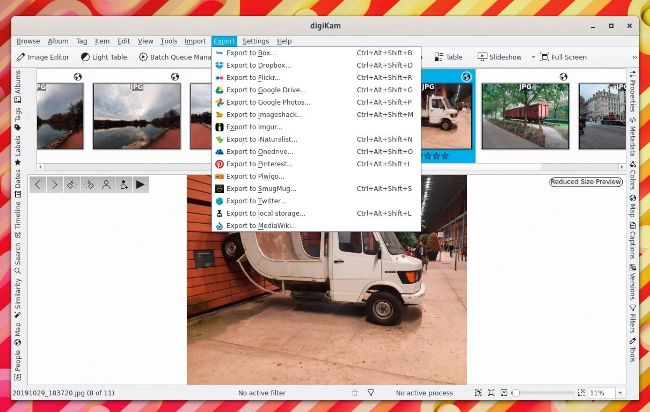
DigiKam has a whole lot of extensions to add to its already impressive feature list, and can also share images on popular image-sharing websites and social networks.
LET’S EXPLORE DIGIKAM...
1 Left toolbar
Use this toolbar to sort through images. Besides the list of photos, it can also sort your image collection by tags, labels, dates, faces and more.
2
Main toolbar
From here you can open additional tools such as the image editor, the light table to compare images, the batch queue manager to process multiple images, and more.
3 Image preview
A preview of the selected image is shown here. Right-click on the image to bring up a list of actions you can perform on it.
4
Right sidebar
This sidebar houses important info and actions for the selected images. Properties and Metadata display all kinds of details, and Colours displays histograms.
5
Status Bar
The status bar shows information about the open image, such as details about the number of filters, a trash icon to delete all filters, options to resize the preview, and more.
VIDEO PLAYER
Haruna Media Player
Version: 1.0.2 Web: https://haruna.kde.org
V
LC
is the de facto media player on the Linux desktop. While it’s very adept at playing all kinds of media, it’s designed to do a lot more as well. So, if you want an app to just play audio and video files, there are lots of options, such as
Haruna.
Although it’s built for the KDE desktop, the app is officially available as a Flatpak, which means you can run it atop any desktop environment.