Answers
Got a burning question about open source or the kernel? Whatever your level, email it to lxf.answers@futurenet.com
Neil Bothwick
says “mo Tux, mo problems”
Key issue
Q
I’m working on setting up for a switch from Windows 10 to Ubuntu (20.04 LTS) and getting all I would want or need from Windows to Ubuntu. I’m stuck on my PGP keys. I want to export them from Windows to Ubuntu. I find no easy way to do it. I need to export both public and private keys from Windows (I’ve tried with
Kleopatra
with no solution that works for me yet) and import the same into Ubuntu and into
Thunderbird.
Steve Cox
A There are two ways to do this. The first is to copy your entire GPG dataset from Windows to Linux. On Windows 10 this is stored at C:\Users\ username\AppData\Roaming\gnupg. Copy this directory to ~/.gnupg and make sure everything is owned and only readable by your user. You can do this with:
$ chown -r $USER ~/.gnupg
$ chmod -R o-rwx,g-rwx ~/.gnupg
If you just want the keys, rather than everything, you can export them in Windows and import them in Linux. The Windows side can be done from Kleopatra. Right-click the key and select Export. Then right-click again and select Backup Private Key. This will give you two .asc files that you need to copy to your Linux system. Then you can import them with
$ gnupg --import username_ID_public.asc
$ gnupg --import username_ID_SECRET. asc
The final step is to add ultimate trust to your keys. Ultimate trust is rarely used, but these are your keys, created by you, so it applies here. Run
$ gpg --edit-key your@email.address
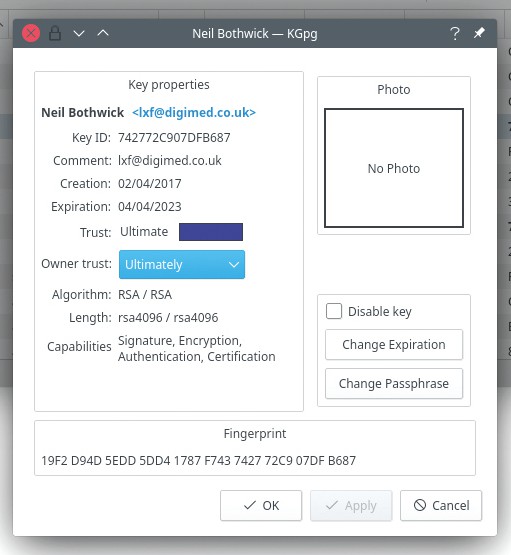
GnuPG keys can be exported in Windows for import in Linux, and vice versa.
It will list your key and show a prompt – you’re in the gpg editor now. Run the command trust and it’ll give you choices for levels of trust to apply. Select the “I trust ultimately” option, confirm it and type quit to exit the editor. Now you have the same keys available on your Windows and Linux systems.
For the sake of completeness, if you ever need to go the other way, you can export your keys from Linux with the following commands:
$ gpg --export-secret-keys -a yourkeyID >gpg_private_key.asc
$ gpg --export -a yourkeyID >gpg_public_ key.asc
Then you can transfer them to Windows and import, either in Kleopatra or using the gpg command line client as in Linux.
One final word of warning: be careful with the exported files. We’d advise saving them to a USB stick when exporting, import directly from there and then format the stick after use, or even zero it with dd. You can’t be too careful with privacy.