MINDFORGER
Organise your ideas, projects and plans
Nick Peers reveals how to use MindForger to help plan everything from your next shopping list to major home improvement projects.
Nick Peers
OUR EXPERT
Nick Peers is dreaming of a new, more powerful server setup. MindForger can do the planning… now all he needs is a lottery win..
Are you the kind of person who takes a scattergun approach to project-management? Do you struggle to stay on top of everything from an upcoming class project to recording gift ideas for someone’s birthday? Then MindForger could be just the tool you need.
The program enables you to organise your life - whether work, personal or a combination of both - into notes and notebooks, which can be adapted to a wide variety of needs. Notes are written in the universal markdown format and can be assigned various properties to make them easy to find while steering you towards getting tasks completed within a set time.
The tool is free and open source, and armed with this tutorial, you’ll be up, running and getting on top of your messy life in no time.
Editing notes in MindForger
1 Quick-fire search Type your terms in here to search across all notebooks or the selected notebook.
2 Outline view Each individual note is listed here, complete with tags and other useful information you’ve supplied, such as importance or urgency ratings.
3 Associations When Mind>Think is selected, MindForger will make suggestions based on the currently selected keyword.
4 Quick-fire formatting You can type markdown text by hand, of course, but the Format menu provides easy shortcuts to format selected text.
5 Markdown editor Like all good markdown editors, MindForger’s editor uses syntax highlighting to help you format your text correctly.
6 Editor controls Click Preview to bring up a preview window next to the editor to display the effects of your changes in real time.
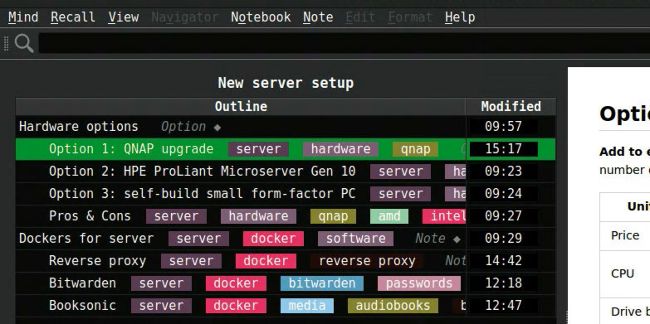
MindForger’s Outline view enables you to view all the notes that make up a single notebook.
If you’re running Ubuntu 19.10 or earlier, you can install MindForger via its own repo:
$ sudo add-apt-repository ppa:ultradvorka/
productivity
$ sudo apt update
$ sudo apt install mindforger
At time of writing (version 1.52.0), we were still waiting for support for Ubuntu 20.04 to appear via the repo route. If it’s still not available when you read this, just download and install the .deb file from https://github.com/dvorka/mindforger/releases. You’ll need to update this manually going forward.
First run
Launch MindForger from its Launcher shortcut. You’ll open in Notebooks view. MindForger has three levels of organisation: Repository Folder>Notebook>Notes. Repository folders are actual folders, inside which individual notebooks reside as separate Markdown (.md) files. Each notebook is then broken down further into notes, which basically reside within the notebook’s file as individual sections, but which show up in MindForger’s interface as separate notes.