Speed up your Mac
Other tricks you can try
Yet more tips and tricks to help speed up your Mac
There are plenty more ways to speed up your workflow and your Mac. Adding a second and even a third screen gives you more workspace, making you more efficient.
After doing so, open System Settings and click Displays. Click the Arrange button, and you can relocate the menu bar, and also drag the secondary screen around the main one, setting their relative positions.
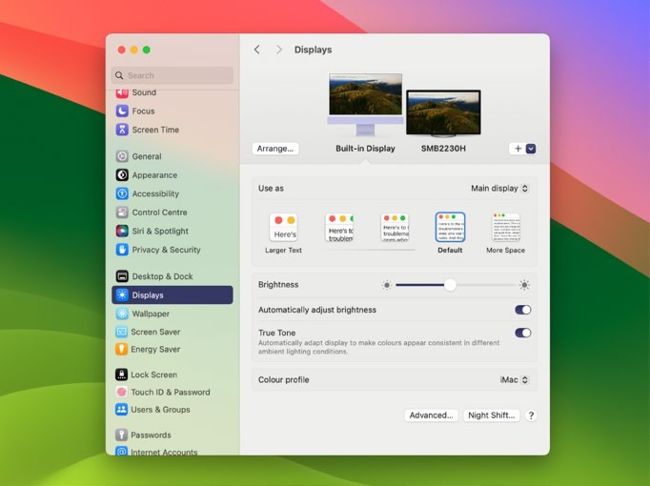
Having a second screen can greatly improve your productivity, but set it up correctly.
Harness accessibility
There’s a wealth of features in System Settings > Accessibility. If you have any kind of disability – or even if you don’t – features such as inverting the screen colours, flashing the screen when an alert occurs or Voice Control might greatly assist your use of the Mac. Explore them and try them out. You can always turn them off again if they don’t suit you.
Master Hot Corners
In System Preferences > Desktop & Dock, click the Hot Corners button. Here you can set actions that are triggered by dragging your pointer into one of your screen’s corners. The range of options is pretty small and you can’t add your own, but if there’s something there you’d like to trigger in a new way, give it a try.