MAC SECRETS REVEALED
We unlock what’s hidden in macOS Monterey’s menus to help us work, relax, and play
WRITTEN BY HOWARD OAKLEY
WITH
THOUSANDS OF Apple’s engineers working on macOS Monterey, the list of new and changed features is long enough to fill a short book. To complicate matters, some of the key enhancements slated to appear, like Universal Control, are still on their way, and others aren’t supported on all the Macs that can run macOS 12.
Few parts of macOS and its bundled apps remain unchanged. Even long– neglected tools like QuickTime Player and Disk Utility have been refreshed and improved. In many cases, these latest improvements are concealed behind new menu commands or controls that are far from obvious.
Our tour starts with the apps you use most, Mail and Safari, which are rich in new features when you know where to look. After those it’s time to concentrate better using Focus and a host of new tools to help you get on with what you’re doing, whether it’s writing a report or watching a movie. Collaboration and communication follow in FaceTime, Messages, and related features. Next up is the new Shortcuts app, with a suite of tips to make it more usable.
We end our guide to macOS Monterey with an assortment of neat ways to get more from your Mac, and other tips to make best use of what the new system has brought.
MAIL & SAFARI
Hide your address for privacy, and browse in tab heaven
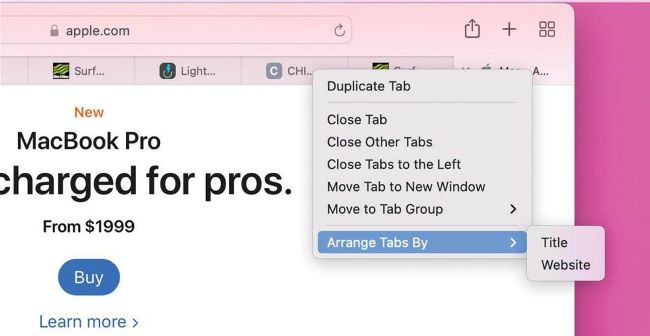
Don’t go overboard in Tab Groups; once opened, each tab takes up valuable memory. Safari manages that, but they can still have an impact.
M
AIL MAY NOT have had much of an overhaul, but it’s steadily recovering important features which were lost when it was rewritten and gains welcome improvements in privacy. Safari’s intended redesign nearly became a disaster, but Tab Groups are magic for many users.
1
BOOKMARKS TO TABS
You can now organize your long list of Bookmarks into Tab Groups, according to subject. Step through each Bookmark you want to add to a given Tab Group, opening each in a new tab. Once you’re happy that you’ve got all of them open, and in the correct order, select the “New Tab Group with [n] Tabs” command from the New Tab Group button at the top–right of the sidebar to add them to a new Tab Group, and give it an appropriate name.
2
CHANGE TAB GROUPS
To add the current page to an existing Tab Group, Ctrl–click in its tab, select the “Move to Tab Group” command, and choose which group to add it to. Within a Tab Group, the same contextual menu lets you close (remove), duplicate or move that tab to another group, as well as enabling you to choose the order in which tabs are shown there. Empty Tab Groups display your Start Page.
3
ON YOUR TAB
Make as many Tab Groups as you like, because their impact is small. When you open Safari, it doesn’t automatically load all the pages in your Tab Groups, but waits until you start browsing them. Even then, Safari only stores the pages which you’ve browsed. If you have a dozen pages in one group but only open one of them, that’s the only page of that group which is kept in memory.
4
MEMORY FRESH
Pages within Tab Groups that you’ve opened during that session in Safari are kept in memory until you quit the browser. This ensures they’re updated quickly when you switch back to them, but when memory’s getting tight they can be a burden. Safari should manage that automatically by wiping the data for you when necessary, and you can always clear it by quitting Safari and opening it again.
EXPORT PASSWORDS
WHETHER YOU WANT to use a password manager, set up a new Mac without Keychain in iCloud, or just want a copy for reference, exporting your passwords from Safari or the Passwords pane is a great solution. It’s available in the Export item in Safari’s File menu, and the More button at the foot of the Passwords section in the app preferences or Passwords. This exports them in CSV format, ready to import into Safari on another Mac, or most password managers. Some expect the order of fields to be different, in which case, open the file in Numbers, reorder the columns, and export it to another CSV file. Make it inaccessible to others by encrypting it, perhaps keeping the copy in an encrypted disk image.
PRIVATE BROWSING
INITIALLY AVAILABLE AS a beta– test, Safari’s new Private Relay service is intended as a feature of iCloud+. Before you can use it in Safari, open the Apple ID pane and enable it in the iCloud section there. Note, though, that this isn’t a full VPN service.
When you want to load a webpage, Safari’s request is encrypted and passes into the Private Relay service in iCloud. There it’s sent through two separate relays; the first anonymizes your IP address to hide it from the website you’re connecting to. The second relay decrypts the destination address and forwards the request to the website.
Together these two steps are intended to prevent the remote website or service that you’re connecting to from discovering your IP address, location, or details of your browsing history, information which Apple says it too can’t intercept. Although this generally works well, as your connection may appear as if it’s being made from a different country to the one you live in, some online services may be denied if they’re restricted to specific countries. A few websites don’t like this, and you’ll need to disable the Private Relay service to access them. Apple is working on improvements to reduce these problems before releasing the full service.