Save anything to a USB STICK
Unlock the full potential of your USB sticks by mak ing them faster, easier, and safer to use. Robert Irvine reveals the best free ways to transfer, organise and protect your files
WHAT YOU CAN DO
• Boost your USB stick’s data-transfer speeds
• Automatically back up photos, videos, and other files to a USB stick
• Discover the true capacity of your USB stick
• Tidy your USB stick by splitting it into partitions
• Use a portable file manager to organize items
• Index contents to find files faster
• Encrypt files or a whole USB drive
CONSIDERING THEIR SIZE, simple designs, and cheap price tags, USB sticks are incredibly useful devices. Plug one into a port on your PC and you can quickly copy files and favorite tools from your hard drive to carry around with you and create backups of important data—without needing to install any software.
However, even if you are a frequent USB stick user, like us, there are always new tricks you can learn to improve your stick and the way you use it. Most Maximum PC readers will probably already know how to run different software from your stick, but it’s equally helpful to know how to enhance its core function of storing your photos, videos, documents, and other files.
The more content you copy to a USB stick, the greater the likelihood it becomes slower, messier, and more prone to malfunction, making files more difficult to access and can causing data corruption.
Here, we reveal expert tips and tools for transferring files faster, whether manually or automatically, fixing common problems when saving items, organizing your USB stick so its contents are easy to find, and protecting your data from prying eyes, should your stick be lost or stolen.
We will also explain the best way to format your USB stick so that you can save and access all the files you need on any of your devices.
TRANSFER FILES FASTER AND BACK THEM UP
Copy files faster to your USB stick
With USB sticks now offering huge storage capacities, you don’t usually have to worry about the size and number of files you copy to them, but you may have to wait a while for large transfers, such as highresolution photos and videos, to complete. If files are taking an inordinate length of time to copy over, there are a few tricks you can try to speed things up.
First, try inserting your USB stick in a different port, in case the current one is damaged and slowing your transfers. If that doesn’t help, ensure that the drivers for your USB stick are up to date. To do this, open Device Manager by typing device manager into the Windows search box and clicking the ‘Best match’. Expand the ‘Disk drives’ category, right-click your USB stick and choose ‘Update driver’ (see screenshot above right), then click ‘Search automatically for drivers’.
If Windows says the best drivers are already installed, try reinstalling them. Choose ‘Uninstall device’ in the right-click menu, unplug your USB stick from your PC and restart your machine. Plug the stick back in and Windows will automatically find and install the latest drivers. Next, try increasing your USB stick’s maximum data-transfer rate. Right-click the Start button in Windows 10 or 11, or press Windows key+X, and select Disk Management.
In the Volume column of the Disk Management window, right-click your USB stick and choose Properties. Click the Hardware tab, select the name of the drive there and click Properties again. On the Policies tab ( 1 in our screenshot top right), select ‘Better performance’ 2 and tick the ‘Enable write caching on the device’ option 3 . Click OK twice to confirm and exit.
With ‘Better performance’ enabled, you should ensure you always safely remove your USB stick from your PC. To do this, right-click its taskbar icon and choose ‘Eject…’, rather than just unplug it, or you risk losing or corrupting data.
Test the speed of your USB sticks
If you want to copy a large number of files (or a small number of large files such as videos) to a USB stick in one go, it makes sense to use the fastest device in your arsenal. Speeds vary considerably between USB sticks and depend on factors including their age, capacity, how many times they have been formatted, and the USB technology they use. The latest standard, USB 3.2, theoretically offers data-transfer rates of up to 20Gbps, but in practice, you’re unlikely to achieve anywhere near that.
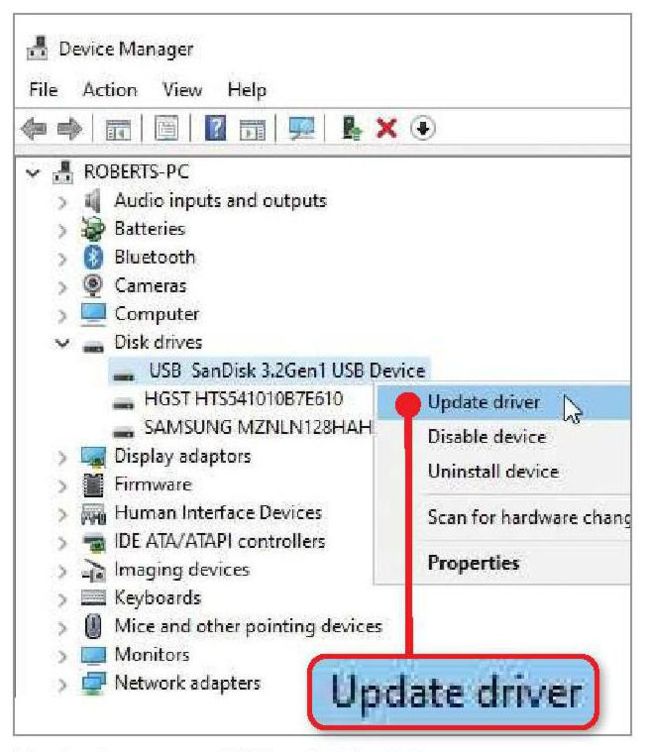
Updating your USB stick’s drivers may fix problems with its performance.
© SANDISK, CRYSTALDISK MARK