YOU’LL NEED THIS
Scan for malware missed by antivirus
MICROSOFT SAFETY SCANNER from https://learn.microsoft. com/en-us/microsoft-365/
1DOWNLOAD MICROSOFT SAFETY SCANNER
Download Microsoft Safety Scanner from https://learn. microsoft.com/en-us/microsoft-365/, where you’ll find links for both 32bit and 64bit versions [Image A]. Your computer is more likely to be 64bit, but check by opening Settings (press Windows key+I), [Image B] then clicking System and About.
» Check the line beside ‘System type’ in the top section of the page that opens. As you can see from our screenshot, our computer is running a ‘64bit operating system’. Therefore, we’ll click this link to ‘Download Microsoft Safety Scanner (64-bit)’.
» You should download a fresh version of Microsoft Safety Scanner each time you want to use it. You should never use one that someone else has shared with you, and we wouldn’t even recommend running the edition you downloaded the day before unless, for some reason, you’re unable to download a new one. That’s because Safety Scanner contains the latest virus definitions you need to look for while scanning.
» Microsoft updates Safety Scanner several times every day. So, if new threats have been identified since you last downloaded it and incorporated into the latest version, you won’t be able to scan for them. For this reason, Microsoft has programmed.
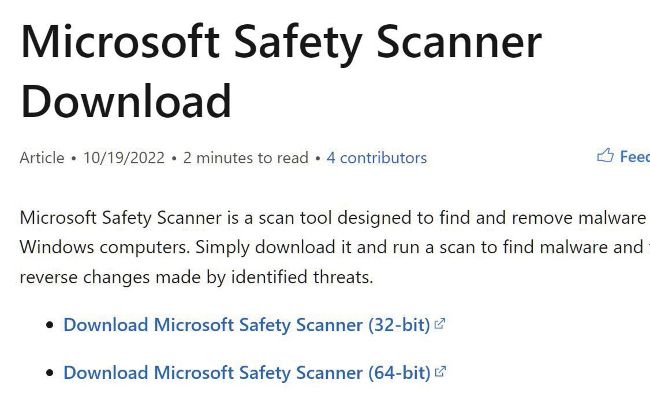
» You can download 32bit or 64bit versions of Microsoft Safety Scanner.
IS YOUR COMPUTER MISBEHAVING? This isn’t always a sign of something serious—a sluggish system might be caused by updates downloading in the background and a stuck cursor could be the result of the batteries in your mouse running flat. However, it could also be the result of malware, which is serious, because it might be performing unauthorized tasks in the background, such as feeding your activity back to a remote server controlled by hackers, or encrypting your files so it can demand a ransom to release them.