DOCTOR
THIS MONTH THE DOCTOR TACKLES...
> Free data recove
> SATA controll
> New Win11 features
Drive stopped working
I have a 3.5-inch hard drive that has been attached to my PC via an external SATA adapter for over a year now. Recently, I booted into Windows only for the computer to hang.
I eventually traced the problem to this drive— powering it off ‘fixed’ the problem but introduced a new one. Now, when I power the drive back on, its drive letter appears in File Explorer but shows no drive space information.
If I double-click the drive to try and open it, I eventually get a ‘Location not available: The file or directory is corrupted and unreadable’ message. If I open Disk Management, the drive shows up as healthy, but as a RAW partition. Does this mean the drive is toast?
—John Arteaga
THE DOCTOR RESPONDS: It sounds like the drive’s partition header has become corrupt somehow—John mentioned that the drive was running hot when it malfunctioned, but as drives routinely run 35-50°C when under load this shouldn’t necessarily indicate there’s a problem.
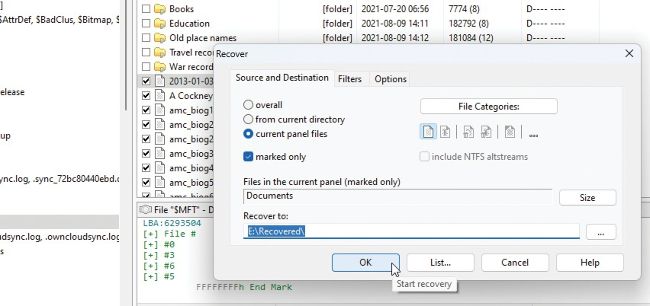
DMDE can recover files from lost and deleted partitions.
© DMDE
We instructed John to download and extract the 64-bit GUI version of the free portable DMDE data recovery tool (https://dmde. com/). Once that’s installed, launch dmde.exe and select a drive from ‘Physical Devices’ from the ‘Select Disk/Task’ page and click OK.
DMDE will list all volumes it can see, including those not currently visible to Windows. In John’s case, his NTFS partition was displayed. Double-clicking this opened a new tab, revealing empty $MetaData and $Root folders, plus an [All Found/Virtual FS] entry that he needed to click. This provides an option to build a read-only virtual file system. Untick ‘include deleted’ and leave ‘Pure FS reconstruction’ selected before clicking OK.