DOCTOR
THIS MONTH THE DOCTOR TACKLES...
> Media subtitles edit
> Combine security too
> Play classic games
Burning subtitle question
I followed your guide to media streaming, but am frustrated at having to download subtitles for HD movies in Jellyfin rather than use the embedded subtitle track. I know of a program for the Mac called Subler, which automatically converts image-based subtitles into a text-based format that’s compatible with the MP4 container. Is there a Windows equivalent that can do this job for me?
—George Hilton
THE DOCTOR RESPONDS: Sadly, despite the Doc’s best efforts, he’s yet to find an alternative to Subler on the Windows platform. However, if you’re willing to put in a bit more effort, then it is possible to achieve what you want. You’ll need to output your file in Handbrake using the MKV container, which preserves the subtitle format without embedding it into the picture. From here you’ll need two further tools: SubtitleEdit (www.nikse.dk) to convert the subtitle track to a text-based one using OCR, and then BOX4 (www.videohelp.com/software/BOX4) to remux the MKV file to MP4.
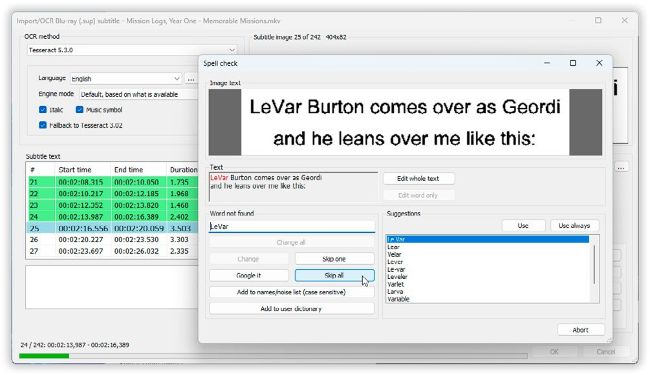
Convert image-based subtitles to text with SubtitleEdit.
© SUBTITLEEDIT/ BOX4
Open SubtitleEdit and choose ‘File > Import > Subtitle from video file’ to select your MKV file. When prompted, click Yes to download the latest version of Tesseract OCR, followed by Download to get the OCR dictionary you need—you’ll only need to do this once.
Once done, an Import dialog will open revealing the very first subtitle as an image file. Leave the default settings selected and click ‘Start OCR’. Subtitle Edit will go through the subtitles line by line—if it comes up against an unrecognized word, you’ll be prompted to check, just like with any regular spellcheck. You can accept or change the word as required, plus add it to the dictionary to prevent it being flagged in future.