Problems Solved
Our experts solve all your tech problems
PROBLEM OF THE FORTNIGHT
How do I back up Apple Calendars?
Q First, thank you for an excellent magazine. I’ve been subscribing for years and never fail to find something useful in every issue.
After reading lots of advice about backups and archives, both in your pages and elsewhere, it occurred to me that I don’t have a local copy of my Apple Calendar data. I always access it through iCloud on my PC, iPhone and iPad, so I’m looking for a way to back it up. The only instructions I found involved Outlook, but my attempts failed. I also tried importing the data into Google Calendar, but again without success. Is it really impossible to back up an iCloud Calendar? Any advice would be much appreciated.
Anne-Marie Nicol
A Apple would probably argue that its iCloud service is the backup. Data from Apple’s Calendar app is typically synchronised across at least two devices, with the iCloud online service acting as both hub and archive. Indeed, if you visit www.icloud.com then click the Data Recovery tab ( 1 in our screenshot above right), you should see at least one or two Calendar backups 2 that you can restore (see screenshot below) if necessary.

Apple’s Calendar app keeps a couple of backed-up versions of your calendars in iCloud
Of course, that’s not much use if you get locked out of your Apple account. Unfortunately, unless you own a Mac, there is no easy way to export this data. If you do have a Mac, launch the Calendar app, then open the File menu before choosing Export followed by Export again. Next, choose a save location, then click Export to save the calendar as an ICS file (with a .ics extension). These are compatible with many modern calendar apps, including Google Calendar.
If you’re not a Mac owner, you can use a workaround to extract this file. First, log into www.icloud.com then click to launch Calendar. Next, under the Calendar heading on the left, click the head-and-shoulders icon and then, next to Public Calendar, click the slider to the On position ( 1 in our screenshot below left). Don’t worry, this won’t make your calendar public unless you click Save, which you’re not going to do.
Instead, click the Copy link 2 to copy the URL to the Windows clipboard. Next, in a new browser tab, press Control (Ctrl)+V to paste the URL into the address bar, then delete the ‘webcal’ bit and instead type https at the start before pressing Enter. This will prompt Calendar to download a .ics version of your calendar so you have a local backup. Next, return to the iCloud tab, switch the Public Calendar slider back to its Off position, then click Save or Cancel.
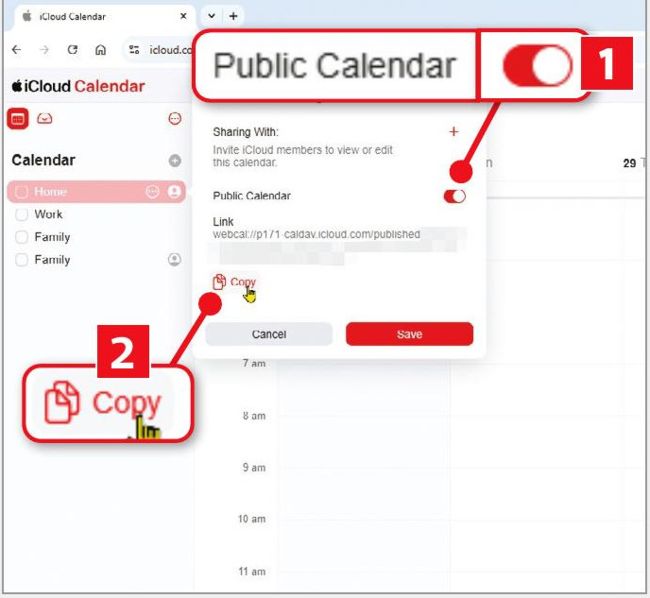
Switch on Public Calendar, then click the Copy link to copy the URL to the Windows clipboard.

To restore a Calendar, click the Restore button next to the backup you want
Finally, to import the .ics file into Google Calendar, for example, open the Google Calendar web page and click the top-right Settings cog, then choose Settings. Next, on the left, click ‘Import & export’ followed by Import. Click ‘Select file from your computer’, navigate to your downloaded .ics file, select it and then click Open.