Website customisation
Customise your home WordPress site
Michael Reed provides some words to the wise and explains how to add some content to your WordPress website and customise it.
WORDPRESS
Credit: http://wordpress.com
Part Two!
Don’t miss next issue, subscribe on page 16!
OUR EXPERT

Michael Reed is a long-term Linux devotee, and over the years he has pressed his words into many formats, online and off.
So far, we’ve set up a self-hosted WordPress site. Now we’re S going to refine and customise the look and the layout of the site. To do so, we will explore the world of templates, themes, blocks and patterns, along with explaining how the block editor can be used to change any element of a WordPress site. By the end, you should have a fully working, customised site that’s ready for use.
Refer to last month’s issue for instructions on how to install WordPress, but this month’s instructions are equally valid if you are using professional hosting rather than hosting the site yourself. We won’t be using the command line at all this month. Just as a reminder, if you are self-hosting the website, and you placed the WordPress files into the wordpress folder at the root of your hosting, you can access the site by typing http://localhost/wordpress/ into your web browser. If you are accessing the server from another machine on your network, you can access it by typing in the IP address of your server followed by /wordpress.
We’re going to be spending most of our time in WordPress’s Dashboard, its central configuration and management hub. If you are logged in, click on the icon at the top of the window. If you are logged out of your WordPress site, you can get back to the Dashboard by adding /wp-admin to the end of the server URL.
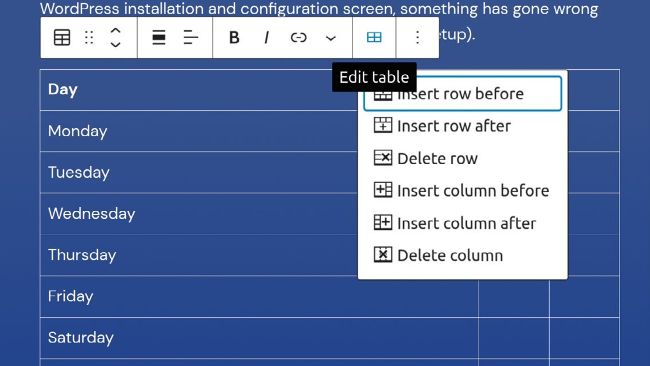
The built-in table block is easy to use and great for things such as feature lists.
Site design time
WordPress has its 20th anniversary this year, but how it works has changed in the last decade. In the old days, site design would usually consist of installing a theme, altering the options for that theme, and adding content using WordPress’s editor. The old editor resembled a word processor with a formatting toolbar along the top. These days, things are a bit more complicated as themes often alter how WordPress works and have their own editors for content and layout. This means that any tutorial has to be tailored to the combination of theme and plugins that the user has installed.
QUICK TIP
In the permalinks settings (Dashboard > Settings > Permalinks), we prefer the Post Name style for internal links. It’s longer but includes more information.
ADD ADDITIONAL THEMES
Click on Add New in the Themes page of the Dashboard. If you want to keep using the block editor, select the Block Themes filter tab. Hover over the thumbnail of a theme and click on Details & Preview. This takes you to a page with an overview of what the theme is capable of. You can always edit a theme if there are small details you don’t like.
On the right-hand side, there is a description of the theme and some ratings and reviews. If you click on the rating itself, you are taken to the user reviews page on the WordPress site. Scrolling down this list, you can get a sense of what the user experience has been with a particular theme. The reliability of your entire site can be compromised by a shonky theme, and you can run into a brick wall when you want to alter the layout if the theme you’ve chosen can’t support something you need, so it’s worth doing the research before installing.
Note that installing a theme doesn’t automatically activate it. We recommend exiting the theme information page (x icon in the top left-hand corner) before activation of a theme and choosing the Live Preview option to see what your site will look like by using that theme with its default options. Finally, commit to this theme by clicking Activate.