Pika Backup AionTask Planify Nyrna Inspector Imgp NewsFlash RufasSliderH eroic Tagger Monophony

Mayank Sharma
thinks he’s quite skilled at picking recommendations for
HotPicks,
and wants to graduate to the next level: fantasy football.
BACKUP
Pika Backup
Version: 0.6.2 Web: https://apps. gnome.org/PikaBackup
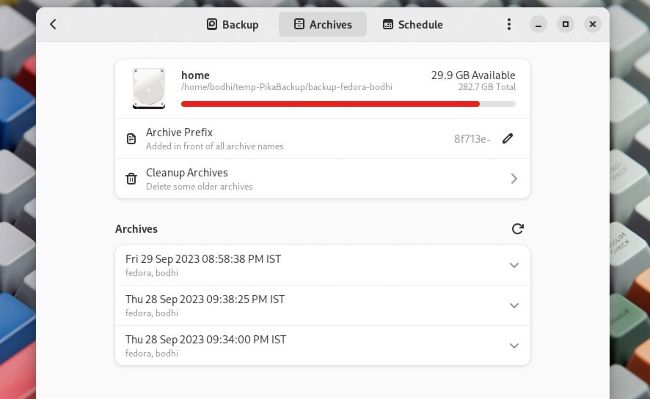
Pika Backup isn’t the most feature-rich backup utility out there, but it’s a nifty tool for home users wanting to back up their personal data.
There’s no dearth of apps that help you back up important data, and that’s a good thing. If you T have ever lost data, you’ll agree. And if you haven’t, it’s just a matter of time. You can’t prevent data loss, but you can prepare for it. Pika Backup helps keep copies of important files via a simple interface.
It’s available as a distro-agnostic Flatpak and can be installed with flatpak install flathub org.gnome. World.PikaBackup .
Pika Backup is based on the venerable CLI utility BorgBackup and exposes one of its coolest functions that helps save time and disk space by not copying data that’s already backed up.
To use the app, you have to set up a backup profile, which involves creating a new backup repository. You can take local backups by creating the repository inside a local location on disk or a removable drive, but a better option is to take backups in a remote location. For best performance, the app suggests setting up Borg on the server side. However, you can take remote backups via SFTP and SMB as well.
After you’ve selected a backup location, you have to enter a password to encrypt your backup. You can optionally choose to keep the backups unencrypted as well. You then have to point the app to files you want to back up, and you’re done. By default, the app selects the Home ~/ directory, excluding the caches, but you can choose to back up specific directories instead, such as Documents and Downloads.
Once the backups are created, you can mount them and then copy any files and folders you want to recover. You can also ask the app to automatically back up your data on a schedule. Furthermore, you can set the app to remove old backups by specifying their lifespan, which helps you save disk space.
LET’S EXPLORE PIKA BACKUP...
1 Backup profiles
Click here to go the main screen, where
you can view all your backup profiles and set up new ones.
2 Backup details
View information about the selected backup profile, and add and remove folders you’d like to back up.
3 View archives
This tab lists all the backup snapshots of the current profile, which you can either browse or delete.
4 Backup schedule
Scheduled backups can be enabled from under this tab. Here you can define their frequency and the lifespan of old backups.
TASK MANAGER
AionTask
Version: 0.9.3 Web: https://gitlab. gnome.org/powimod/aion-task
We all have daily tasks to do, which we tend to forget, despite their repetitive nature. AionTask is designed specifically to remind us of such simple everyday cyclic tasks that tend to fade away from our consciousness.
The app is available on Flathub and can be installed with flatpak install flathub org.gnome.gitlab. powimod.aion-task .
The simple interface of the app is very welcoming. Use the + icon to create a task, then indicate its next execution date and its frequency (in days, weeks, months or years).
A task with a frequency of one day is repeated every day. A task with a frequency of two days is repeated every other day, and so on. A task’s frequency can also be specified as once, which means the task is disabled once it’s taken care of.
After you’ve entered all the details, smash the arrow button at the top to save the task. Repeat the steps to create additional tasks and populate the task list. In the main interface, a filter button is enabled by default to show you only tasks due on the current date. You can use the pull-down button next to it to increase the scope and view tasks scheduled to be completed on other days. You can also toggle this button to view all scheduled tasks, irrespective of when they are due.
Click on a task to bring up its details view. The view has several icons at the top to display different aspects of the task. For instance, the notes icon enables you to add notes to the task. There’s also a log panel, which shows you the execution history of the task.
When a task is completed, mark it as such by clicking its validation button. This calculates its next execution date and schedules it appropriately.
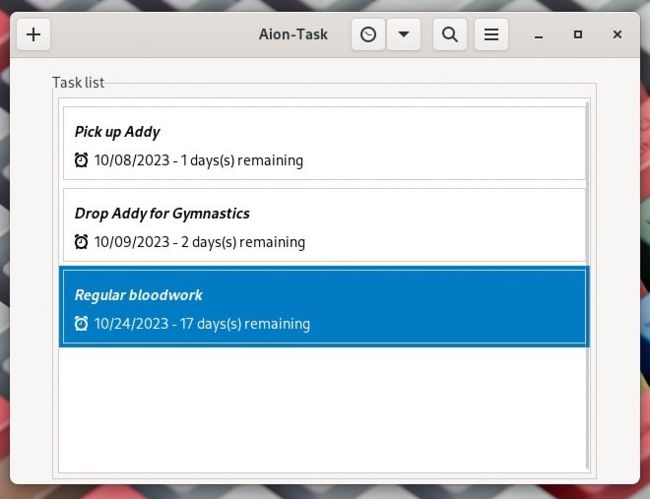
AionTask is a simple to-do manager that helps you keep track of smaller, personal, repetitive tasks.
TO-DO MANAGER
Planify
Version: 4.1
Web: https://useplanner.com
If AionTask is too simple for your needs and you need something that gives you more mileage, take a look at Planify. You can sync it with Google Tasks and Todoist across devices, and it can be used for managing everything from individual tasks to group projects.
Planify is available as a Flatpak and you can install it with the following command: flatpak install flathub io.github.alainm23.planify .
Despite its features, Planify has an uncluttered interface. Press the + button to create a new task. Give it a title and a brief description, then save the task.
Then use the Schedule button at the bottom to choose a date for the task’s completion. You can either schedule the task for later today, tomorrow or next week, or open the calendar to choose a custom date.
Once you have set multiple tasks, you can drag and drop them to change their order. The app also enables you to organise your tasks better by filing them under custom projects. Click the + icon in the On This Computer section to add a custom project. You can create multiple projects and assign different tags, along with the dates when you would want to finish that particular task.
Similarly, to ease the management of a larger project with several tasks, you can use the app to split your project into several smaller sections, each with fewer tasks. You can also assign a label to tasks. For this you can either choose from one of the predefined ones or create your own.
The latest release features a new icon and several new features. You can now quickly add tasks with a keyboard shortcut, which you can set in the redesigned Preferences section. Here you can also find options to run the app in the background or during boot.
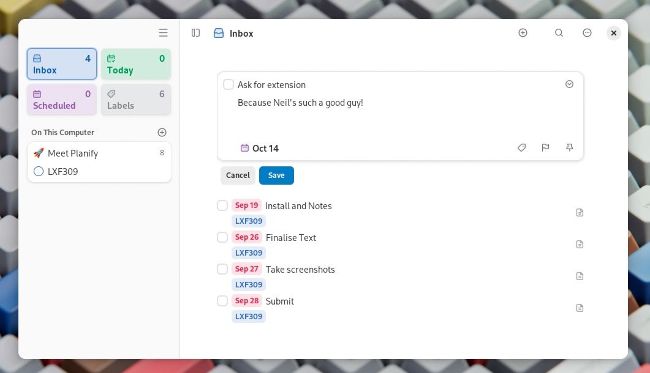
Planify, earlier known as Planner, has been renamed to differentiate it from the Gnome Planner.
PROCESS SUSPENDER
Nyrna
Version: 2.17.0 Web: https://nyrna.merritt.codes
There’s no shortage of resource-guzzling apps on our computers; what is limited, however, are the aforementioned resources. So, what do you do when you are working on one processorintensive app and need to fire up another? Using Nyrna you can essentially ‘pause’ one app and free up the resources it was hogging,for others to use.
Nyrna is available as a Flatpak and can be installed with flatpak install flathub codes.merritt.Nyrna .
On first launch, the app checks whether there are any missing dependencies and lists them, so you can install them from your distro’s package manager.
When you get into the app, it lists all the apps currently running on the computer, along with their process ID (PID). Simply click on an entry in the list to suspend the app, which then disappears from view, and Nyrna displays an orange icon next to it.
Importantly, suspending the app also frees up the CPU and GPU resources that were being used by it Remember, however, that suspending an app does not free up RAM. Also, while you can click on the entry for a suspended app to bring it to the foreground again, you can’t do so if you restart the computer.
By default, the app uses the Pause key as the hotkey for suspending the currently active app. A subsequent press resumes that application.
You can change the hotkey from within the settings window. Interestingly, the app also supports appspecific hotkeys. Once set, these pause or resume their defined app even if their window is not in focus.
Another interesting option in the settings window is the Show Hidden Windows toggle. It’s disabled by default, but you can toggle it on if Nyrna fails to catch a running app.
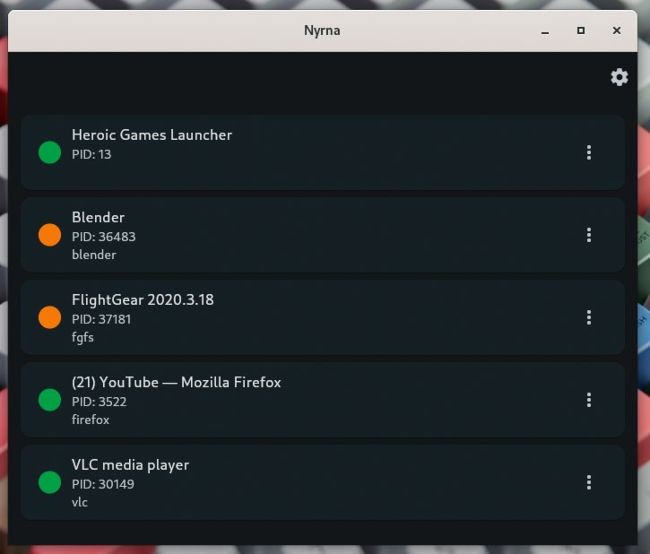
By default, Nyrna scans for running apps every five seconds. You can change this interval or turn it off completely.
SYSTEM VIEWER
Inspector
Version: 0.1.7 Web: https://github.com/Nokse22/inspector
S ystem info apps for Linux aren’t in short supply, but many of them are command-line utilities, which aren’t much use in the hands of the average desktop user. Inspector wraps the details you can fetch from some of the best command-line utils in a nice searchable and unified GUI.
The app can be installed from Flathub with flatpak install flathub io.github.nokse22.inspector .
The app has a tab-based interface that breaks down the hardware and system info into familiar categories such as Disk, CPU, Memory, Motherboard and such.
The information listed in each section is quite detailed and verbose. So, you learn not just what model of CPU you have, but also the size and number of its caches, its minimum and maximum clock speeds, and a lot more. It also shows the CPU’s vulnerability status, in that it lists the kind of mitigations it has, if any, for some common vulnerabilities.
The USB tab dishes out info about all the devices connected via USB, such as external input devices, Bluetooth adaptors and more. There’s also a System tab that displays information about the running kernel and distribution.
Inspector could be overkill for casual users wanting to find details about their hardware. For instance, the Memory tab displays the ranges of available memory, along with the memory block size, device size, and the amount of memory in online and offline state. However, it doesn’t display the total size of memory, or make and model, and whether there are any free memory banks in the motherboard, which is probably what most users are interested in. You won’t even find this in the Motherboard tab, which lists all kinds of identifying details about the board’s manufacturer.
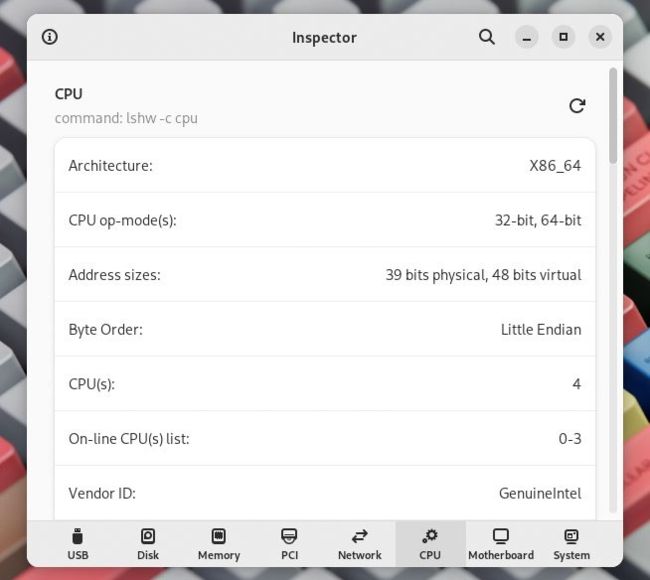
CLI warriors will appreciate the fact that Inspector lists all the commands it’s using to get information for each of its sections.
IMAGE CONVERTER
Imgp
Version: 2.9 Web: https://github.com/jarun/imgp
There are plenty of image editors that can resize or rotate images. You can even find CLI utilities that can batch-process several images at once, and Imgp is one of them.
It is available in the official repos of most distros, but chances are it’s an old release. The project puts out DEB and RPM binaries for popular distros, but these weren’t available for the latest version at time of writing. Installing it from source isn’t much trouble, though.
Begin by making sure you have the Pillow Python imaging library. You can either grab it from your distro’s package manager or via Python’s Pip package manager with pip3 install pillow .
Once you have the library, grab the source code for the latest release from the project’s download page and extract it with unzip v2.9.zip . Now change into the extracted directory and compile the utility with sudo make install .
You can use the Imgp utility to resize images by percentage or resolution, rotate them clockwise or anticlockwise by specific angles, brute-force resolutions, convert PNG to JPEG (and vice versa), erase EXIF metadata from the images, and more. For instance, the following resizes an image to 1024x768:
$ imgp -x 1024x768 20191209_144408.jpg 20191209_144408.jpg 4608x3456 -> 1024x768 2278111 bytes -> 216967 bytes 1 processed in 0.5645 seconds.
The resized image has the name of the original with the added _IMGP suffix. By default, it does not process files with the _IMGP suffix. Use the -w switch to replace the original. The following resizes (-x) and replaces (-w) all image files (-r) in the current directory that are at least 50KB in size, keeping their orientation (-a) in mind:
$ imgp -wrax 1024x768 -s 51200
Visit the utility’s website for more usage examples.
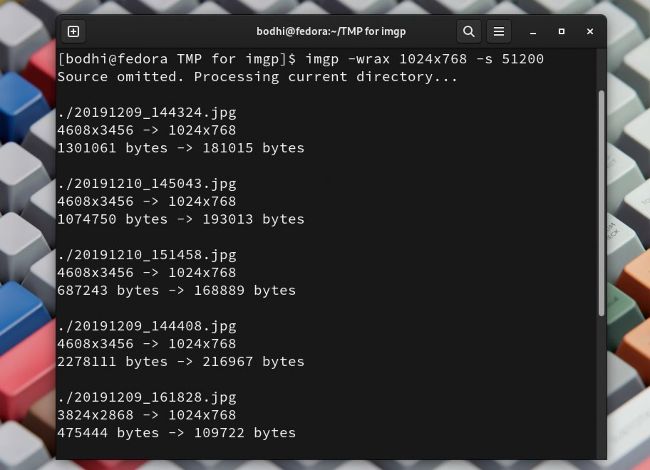
Unless you point Imgp to a particular file or directory, it works on all the images it finds in the current directory.
RSS READER
NewsFlash
Version: 2.3.1 Web: https://gitlab.com/news-flash/news_flash_gtk
A feed reader helps you outwit the Big Tech algorithm that dishes out curated content, and instead puts you in charge of what you want to read. The biggest advantage with NewsFlash is that if you’re already using a web-based RSS feed reader, you can ask the app to sync with those online services, instead of manually importing the feeds again.
NewsFlash is available on Flathub and can be installed with flatpak install flathub io.gitlab.news_ flash.NewsFlash .
When launched, the app asks you to point it to the web service that has your feeds. The app supports popular avenues such as NewsBlur, as well as selfhosted ones like NextCloud News, Fever, FreshRSS and others. Note, however, that if you don’t use any of these services, you can still manually add RSS feeds.
Connecting NewsFlash to one of the supported services is reasonably straightforward, and usually involves handing over your authentication details to enable NewsFlash to log into your account for you and fetch your feeds.
One interesting option in the app is the Discover pop-up that helps you find new feeds to follow. It’s powered by Feedly and lists a handful of popular topics, along with a search box to help you find feeds related to topics of your interest. By default, the Discover option looks for topics in English, but can also be asked to find topics in German.
Clicking on a listed topic or searching for one displays several websites related to the topic, along with a brief synopsis of the website. If it takes your fancy, you can add it to NewsFlash. The app enables you to edit the title of the feed and file it under a category for easier management.

NewsFlash has an impressive list of features, including the ability to add custom tags to articles and star them for easier access.
PUZZLES
RufasSlider
Version: 3.3.4 Web: https://sourceforge. net/projects/rufasslider
RufasSlider is a collection of 16 block slider puzzles made up of a Klotski-style family, a DirtyDozen family and a Traffic-Rush family.
There’s no installation involved. Download and extract the game’s archive, then change into the bin/gnu directory and run the rufaslid script, either by double-clicking in the file manager or with ./rufaslid .
The Klotski family uses rectangles of four different sizes. The objective in each game is stated near the top, but usually involves moving a large block to a specified location within the window.
The DirtyDozen family is similar except it’s made of L-shaped puzzle pieces. The Traffic-Rush family uses cars or trucks that can only be moved lengthwise. The goal is to move the red car towards the shaded exit.
The game includes several other classic block slider games, such as Fifteen, Eight, Nine, Panama, MaBoy and more. Also included are two of the developer’s own creations, named Flat7 and FlatAZ.
To move a block in any of the puzzles, use the arrow keys. Rush and MaBoy also allow mouse drags to initiate the moves. If the automatic block selector chooses the wrong block, simply click the cursor on the desired block before using the arrow key.
Block selection is not necessary when only one block can move in the indicated direction. For instance, in FourSuits, you don’t need to select a block, because there’s only one empty space.
Some puzzles, such as Traffic-Rush and Klotski, also offer an autosolver option. This is particularly handy as you can use the autosolver interactively by pressing the = key repeatedly, which helps you track each and every move involved in solving the puzzle.
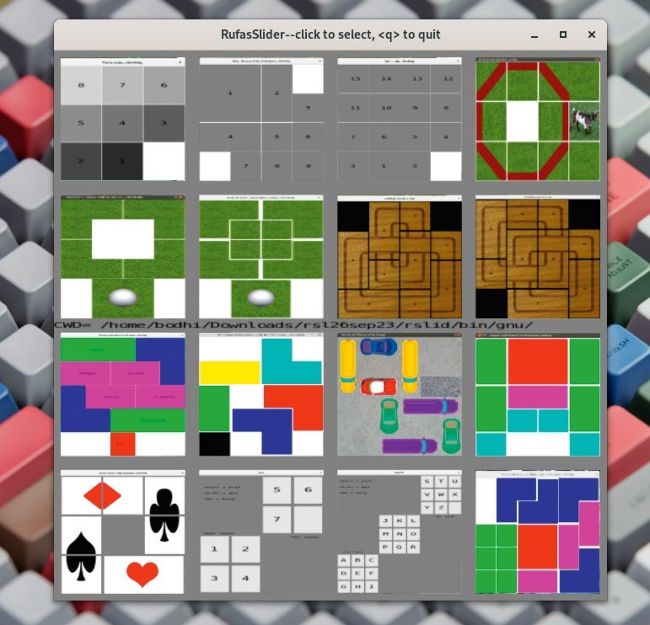
RufasSlider is a collection of several variations of Klotski-style 2D slider block puzzles that’ll keep you hooked for hours.
GAME LAUNCHER
Heroic
Version: 2.9.2 Web: https:// heroicgameslauncher.com
If you need a game launcher that can run on your Steam Deck and your Linux distro, take a I look at Heroic. Besides of its cross-platform advantages, you can also use Heroic to run games from different gaming stores, as well as Windows-only games from the Epic Games store.
The launcher has pre-compiled RPM and DEB binaries, and is also available as a distro-agnostic AppImage or Flatpak. You can either download the AppImage, then make it an executable with chmod +x , or install the Flatpak (on Linux or on the Steam Deck) with flatpak install flathub com. heroicgameslauncher.hgl .
On first launch, you’re asked to log into your Epic Games, GOG or Amazon account in order to access your library from these stores.
From there on, using the app is pretty intuitive. You browse the store and find a game you like. If you are uncertain whether the game works on Linux, you can head to the hamburger menu in the game listing screen and click on Check Compatibility. This pulls up the game’s record from ProtonDB, which tells you how well the game works on Linux.
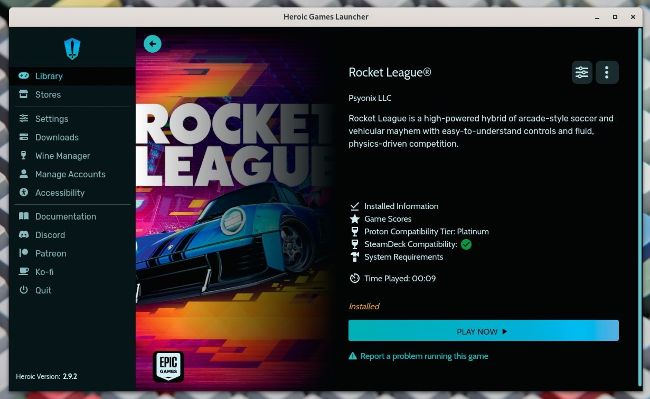
Besides native Linux games, you can also use Heroic to install and launch Windowsonly games via Wine or Proton.
If you decide to install a game, the launcher takes you to a dialog that displays a summary of the game, including its download size, installation size, where it will be installed, its WinePrefix and Wine version.
Heroic does give you the option to head to the Wine Manager if you want to download a specific version that works with the game. You can also install alternative versions of Wine, such as Proton GE, then change the Wine version for a game by clicking the Settings option on its store page.
Heroic can also import an installed game, as well as install, uninstall, update, repair and move games.
TAG EDITOR
Tagger
Version: 2023.9.1 Web: https://github. com/NickvisionApps/Tagger
If you’re anything like us and spent a huge chunk of the 2000s (or earlier) ripping CDs and building up a music library, a tag editor is worth its weight in gold.
Sure, there’s no shortage of editors that let you quickly tag your collection, but these are overkill for times when all you need to do is edit just one or two tags in a handful of MP3s. That’s what you can do with Tagger from a pleasing user interface.
The app is available on Flathub and can be installed with flatpak install flathub org.nickvision.tagger .
To get started, you must point the app to your music library. You can do this either by directing it towards the folder that houses your music, or by pointing it to a playlist, which it parses to get to the music files. The app supports all common playlist formats including M3U, PLS and more. In the same vein, besides MP3s, it can also read and write metadata to music files in OGG, FLAC, WAV and other formats.
After you’ve tossed it some files, Tagger displays a two-pane interface. On one side you have a list of tracks, and on the other side are rows of editable tag fields. After you’ve made all the edits, hit the Apply button in the toolbar to write the changes to the files.
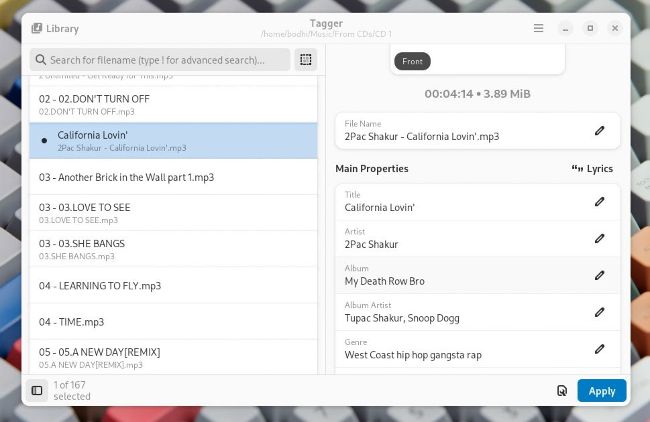
In addition to editing metadata in your music files, you can also use Tagger to create playlists in a variety of formats.
The app enables you to edit tags and album art for individual files or for multiple files, as well as convert filenames to tags and vice versa. Tagger can also, very helpfully, download metadata with a single click from the MusicBrainz encyclopedia using the libmusicbrainz5 library.
You can also use the app to look up lyrics for tracks using Music163 and Letras, as well as manually edit unsynchronised and synchronised lyrics for a track.
STREAMING MUSIC PLAYER
Monophony
Version: 2.2.1 Web: https://gitlab.com/zehkira/monophony
Myuzi was a popular option for streaming music from YouTube that we’ve covered in these pages (LXF299, HotPicks). Monophony can be considered a spiritual successor to Myuzi, because it comes from the same developer, and has a much better and more polished interface.
The app is officially distributed as a distro-agnostic Flatpak and can be installed with flatpak install flathub io.gitlab.zehkira.Monophony .
Myuzi launches to a rather barren interface with a prominent search bar at the top. Use it to enter a search term, such as a song title or the name of an artist, which it uses to fetch a list of matching results that are displayed under categories such as Songs, Albums, Community Playlist and more.
You can then play either a specific track or even an entire album. The app also shows matching results under a Videos category, which could be official videos, live recordings or perhaps even an interview. But despite the category name, Monophony still only streams the audio from these results and not the video.
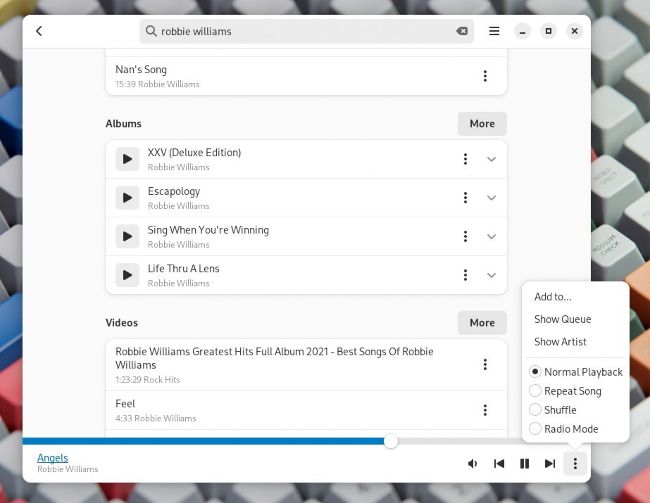
While Monophony can only stream audio, it does let you open the song on YouTube on your default browser if you want to view the associated video.
When it’s playing audio, Monophony provides the usual options to control playback. Besides the Play, Previous and Next options, you also get a button to shuffle the tracks, and a loop option that loops the song playing at the time you click the button.
One interesting option is the radio mode that comes in handy when you are in an exploratory mood. Just pick a track, enable the radio mode and the app automatically plays tracks after the current one ends. Although there’s no official description of the mode, it seems it’s based on YouTube’s autoplay feature, which continues playing related videos.
You can also add tracks and albums to custom playlists, which are then listed on the application’s landing screen.