MAKE YOUR iPHONE PERFECT!
Amazing ways to personalise your iOS 16 Home & Lock screens to make your iPhone unmistakably yours
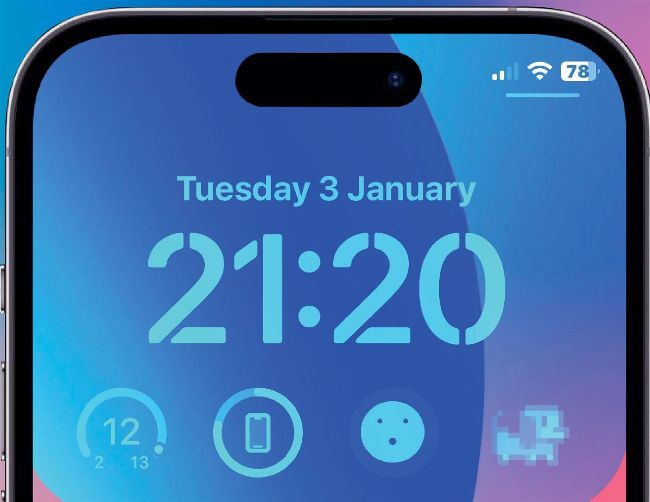
As long as there have been iPhones, there have been ways to customise and make them your own – from changing the wallpaper to arranging your app icons. But as the handsets have evolved and iOS undergoes multiple updates every year, the possibilities to personalise your device even further have increased. Customisation options have steadily been expanded to allow you to add helpful widgets, design your own app icons and – since the release of iOS 16 last year – even create your own Lock Screen with personalised, at-a-glance info. Over the following pages we’ll leave no option un-tapped in our quest to provide the ultimate iPhone customisation guide.
• Image credit: Apple Inc
Master your App Library
The App Library can be accessed by swiping left from your Home Screen and it provides easy access to all of the apps currently installed on your iPhone. But there is a little more to it than meets the eye…
Confine your apps to the library
A good way to start the customisation process is to clean up your Home Screen(s) and rid them of unruly app icons. Here’s how you go about doing that…
1 Open Settings
In Settings>Home Screen, set the Newly Downloaded Apps option to ‘App Library Only’. This will mean that all downloaded apps will go straight to your App Library.
2 Remove app icons
For existing app icons, long-press on them and choose Remove App>Remove from Home Screen. You can also drag app icons to a new, blank Home Screen…
3 Hide Home Screens
You can then hide these Home Screens. Press and hold on a blank part of the screen (until the app icons shake), tap the dotted icon just above the Dock, and untick them.
Personalise your wallpaper
The interface through which you can edit your iPhone wallpaper has changed recently to incorporate Lock Screen-editing options too. We’ll come to those later, but here’s how you change the Home Screen look.
1 Open Settings
Go to Settings>Wallpaper and tap ‘Customise’ under the image of your Home Screen. You can now personalise your existing wallpaper in cool new ways.
2 Add blur
Wallpaper Legibility Blur was added with iOS 16 and tapping the option will blur your Home Screen wallpaper subtly so that the icons and widgets stand out more.