LEARN LINUX!
Finally had enough of your Windows PC? Nick Peers reveals how to fully road-test – then switch to – a user-friendly Linux distro.
* Hey, we don’t know how many cups of tea you’ll be drinking or your internet download speeds…
There’s a myriad reasons for why you might have fallen out of love with your computer. Perhaps you’re tired of the constant updates and upgrades that slowly sap the life out of it unless you invest in expensive hardware upgrades (or even a completely new computer).
Maybe it’s the slow erosion of your privacy as personal information is leaked, and your computer is targeted with adverts. Or you might simply hanker after a new experience, one that takes you back to a time when you still enjoyed computing.
The answer to all these concerns is Linux. It’s supported for much longer than many OSes – up to 10 years, depending on Long Term Support options – freeing you from that constant upgrade/update cycle. Linux is also optimised for older hardware, so can give your existing PC a new lease of life. No personal data is collected, and the OS doesn’t try to sneak any ads in.
Ah, you say, but Linux is difficult to use, right? Wrong. There’s a multitude of Linux distros out there written with the normal, everyday user in mind, and in this feature, we’re going to introduce you to one of the most popular: Elementary OS. Its slick user interface is easy to master, and it’ll instantly feel familiar. We’ll show you how to test it thoroughly before installing it on your PC, either alongside your existing Windows installation or in place of it.
So, are you ready for a fresh start? Then buckle up as we take you from a Linux Learner to Linux User in around 60 minutes* . Let’s go!
Prep for a Linux OS
An ounce of preparation is worth a pound of cure.
The good news is that you don’t need to commit to a full-blown install of Linux to T determine if it’s right for you. Many Linux distros – including Elementary OS – come with a live version of the operating system that can be run directly from DVD or USB flash drive. This enables you to get started with Linux in minutes without committing any hard drive space. Reboot your PC with the drive inserted, then look for an option to bring up the boot menu just after your PC switches on (typically F11 or F12). Press this, then select your boot media from the menu – if there’s a choice, try UEFI first.
If you’ve installed Ventoy, you’ll see a list of ISO files stored on the drive – choose the Elementary OS ISO option and it should then display a menu inviting you to Try Or Install Elementary OS. Select this to be taken through a quick language/keyboard setup wizard. From here, select Try Demo Mode and click Next.
Once Elementary OS has loaded, you can browse its desktop as if you’d installed it on to your hard drive. Sadly, you can’t install any apps, but you can get a feel for how the desktop works. If you run into problems with the display, turn to page 38 for some tips.
If Elementary OS doesn’t float your boat, turn to page 39 to find details of five alternative distros you can try. Download the ISO, add it to your Ventoyenabled flash drive and give it a run. When you’re ready to boot your drive, turn the page to find out how to get started with Linux!
The virtual path…
If you’re not convinced by Elementary OS after running it in a live environment, the next logical step is to install it inside a virtual machine (VM) within your OS, so you can get a more realistic feel for it – you’ll be able to install other software, for example.
Download and install VirtualBox (www.virtualbox. org), launch it and choose Machine > New. Click the down arrow next to ISO Image to select your Elementary ISO file and give your virtual machine a suitable name. Expand Hardware to allocate more memory and CPU resources if available – a couple of cores and 4GB of memory is ideal. For the Hard Disk increase the size of the virtual hard disk to a more comfortable 64GB, plus choose a suitable drive or folder on your PC to house it all.
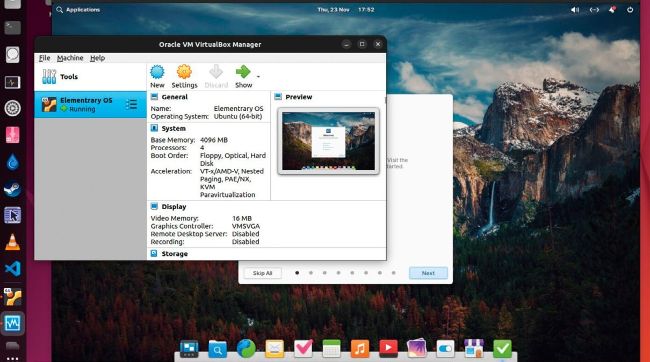
Elementary OS can be spun up in a virtual machine in seconds, so you can test run Linux for yourself on almost any system.
CREDIT: Magictorch
Click Finish, then click Start and watch as Elementary runs inside its own window. When you come to the Try Or Install screen, choose Erase Disk And Install, and follow the guide in the main copy to install a fully working version inside the virtual machine (ignore the warning about it not working properly in a VM by clicking Install Anyway).
Once installed, shut down the VM and click Settings > Display. Verify VMSVGA is selected as the Graphics Controller, tick Enable 3D Acceleration and allocate the maximum amount of RAM. Boot into your VM and follow the optional steps outlined at https://i12bretro. github.io/tutorials/0137.html to install the Guest Additions and improve performance.